> For the complete documentation index, see [llms.txt](https://docs.shoplift.ai/llms.txt). Markdown versions of documentation pages are available by appending `.md` to page URLs; this page is available as [Markdown](https://docs.shoplift.ai/integrate/ga4-beta/view-test-data-in-ga4.md).
# View Test Data In GA4
Once you've connected Shoplift to GA4, you can view your test data in two ways: through auto-generated Audiences or through custom Explorations. This guide walks you through both methods.
***
### Before You Start: Register the Custom Dimension
{% hint style="info" %}
**Required Step:** You must register `exp_variant_string` as a custom dimension before you can use test data in GA4 Explorations. Skip this step and your test variants won't appear as a segmentation option, populating as (not set) values instead.
{% endhint %}
GA4 requires event parameters to be registered as custom dimensions before they can be used in reports. If you've already done this, you can skip to the next steps.
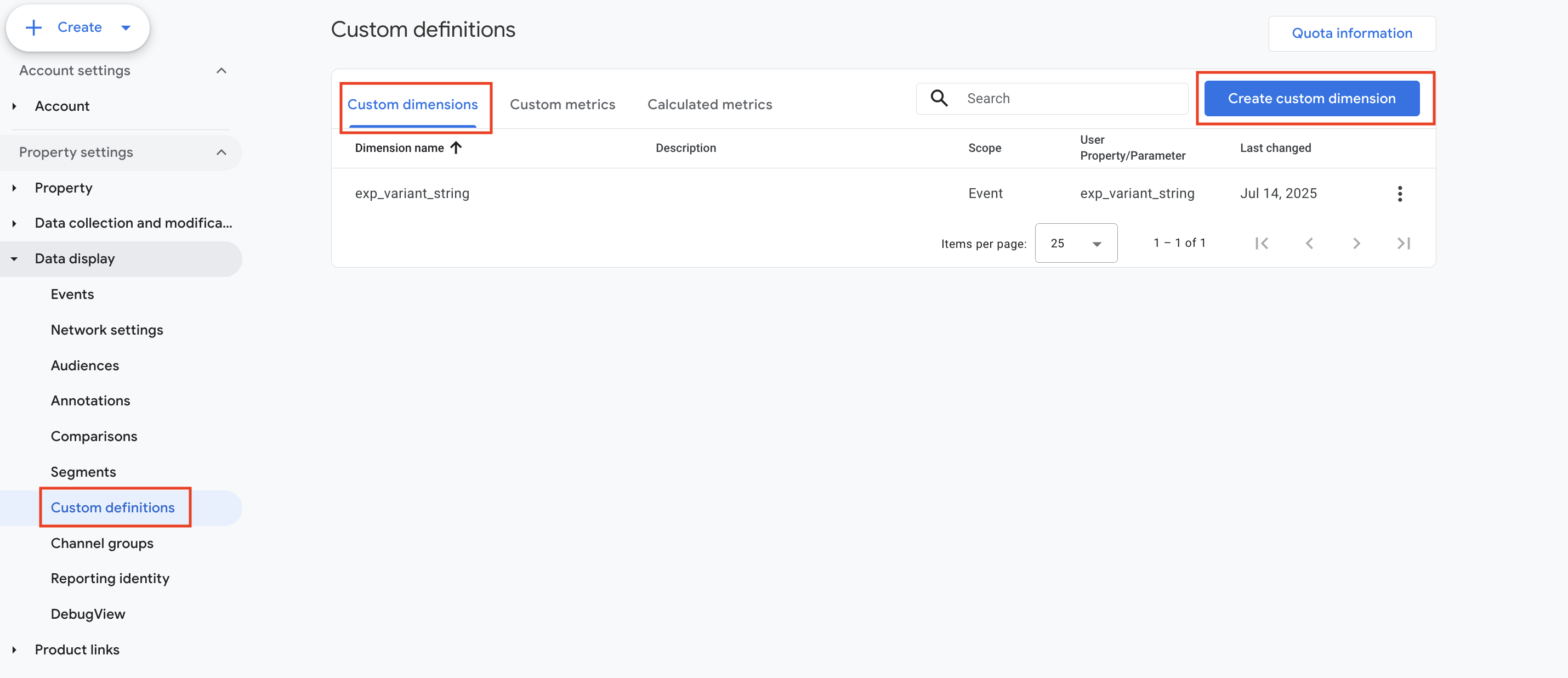
1. In Google Analytics, click **Admin** (gear icon in the bottom left)
2. Under your property, click **Custom definitions**
3. Click **Create custom dimension**
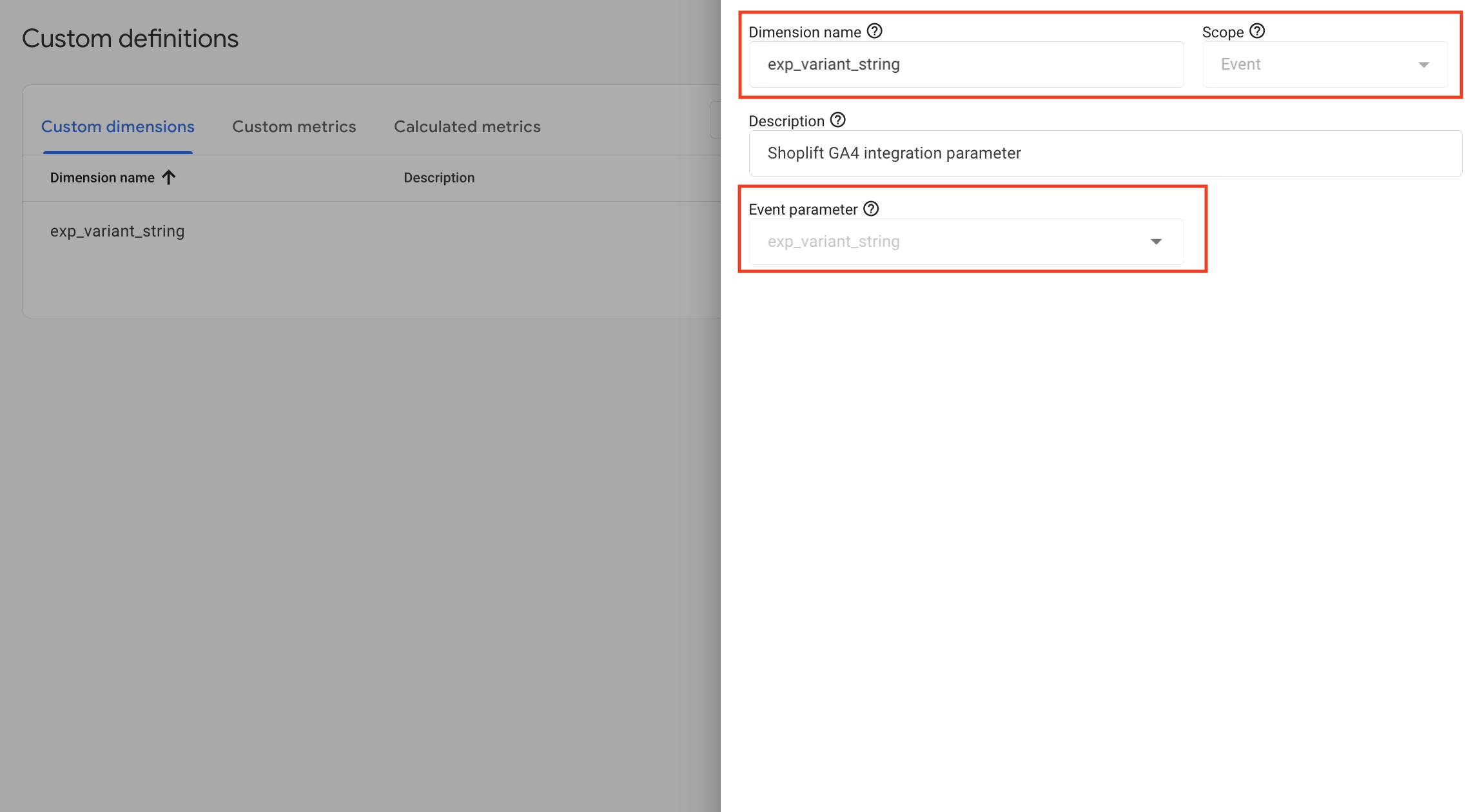
4. Configure the dimension:
* **Dimension name:** `exp_variant_string`
* **Scope:** Event
* **Event parameter:** Select `exp_variant_string` from the dropdown
5. Click **Save**
{% hint style="info" %}
**Note:** If `exp_variant_string` doesn't appear in the Event parameter dropdown, it means GA4 hasn't received any events with this parameter yet. Launch a test in Shoplift and visit your store as a test participant, then return to this step. It may take up to 24 hours for new parameters to appear.
{% endhint %}
Once registered, the custom dimension will be available for use in Explorations within 24-48 hours.
***
### Method 1: Analyzing data with audiences
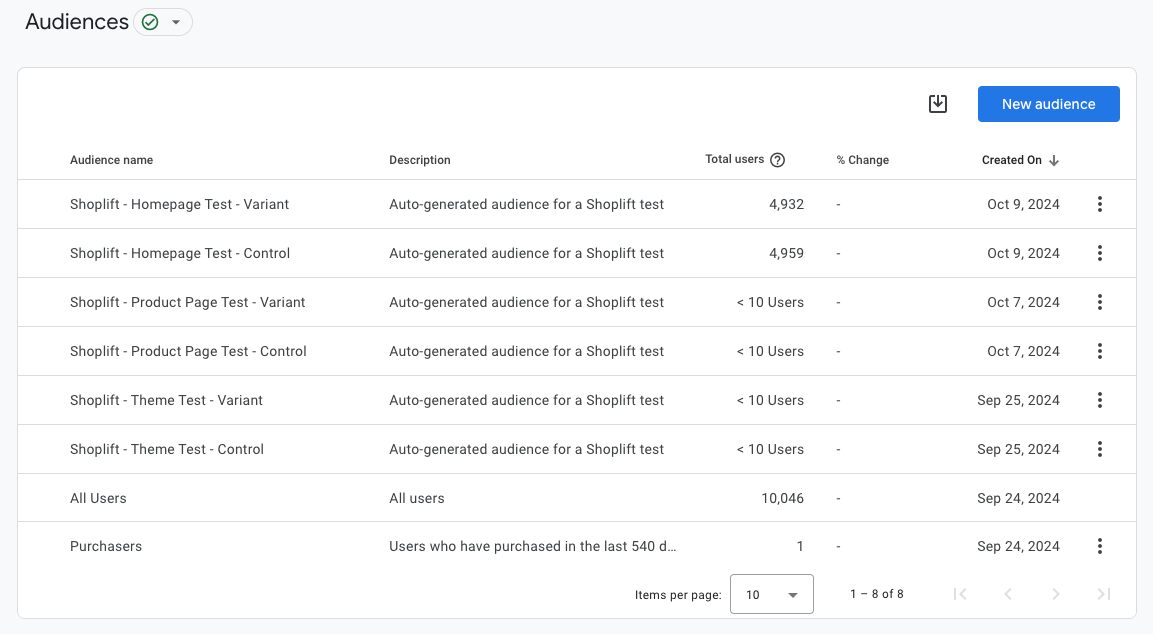
Shoplift automatically creates two GA4 audiences for each active test—one for the control group and one for the variant. This is the quickest way to see test participation data.
{% hint style="info" %}
Audiences only gives you high level information. For deeper analysis, use [Explorations](#analyze-data-in-explorations).
{% endhint %}
#### Finding Your Test Audiences
1. In Google Analytics, click **Admin**
2. Under **Data display**, click **Audiences**
3. Look for audiences with the description "Auto-generated audience for a Shoplift test"
For each test, you'll see two audiences following this naming pattern:
* `Shoplift Test - [Test Name] - Control`
* `Shoplift Test - [Test Name] - Variant`
#### What You Can See in Audiences
Click into any audience to view:
* **Total users** assigned to that test variant
* **Device category** breakdown (desktop vs. mobile)
* User trends over time
Audiences provide a quick snapshot but have limited analytical capabilities. For deeper analysis—like comparing conversion rates or revenue between variants—use Explorations instead.
***
### Analyze Data in Explorations
Explorations give you full control over how you analyze test performance, allowing you to compare any GA4 metric across your test variants.
{% hint style="warning" %}
**GA4 Explorations are 24–48 hours behind Shoplift.** GA4 processes Exploration data on a daily cycle, so data from the current day and previous day may be incomplete or missing entirely. Always compare against dates that are at least 2 days old.
{% endhint %}
#### Creating a Test Analysis Exploration
Follow these steps to build an Exploration that compares your control and variant groups:
**Step 1: Start a new Exploration**
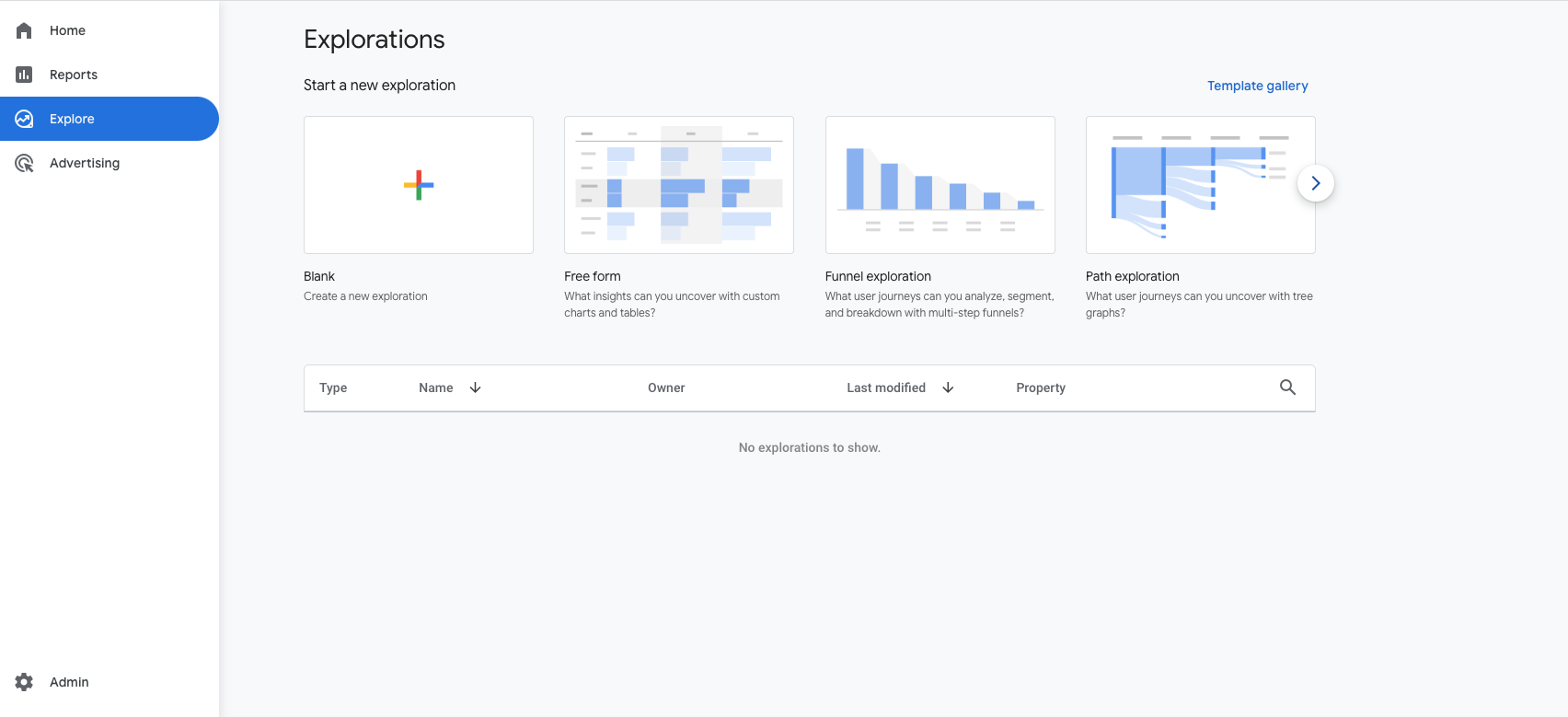
1. In GA4, click **Explore** in the left navigation
2. Click **Blank** to create a new exploration
**Step 2: Create a segment for your control group**
1. In the **Variables** panel on the left, click the **+** next to **Segments**
2. Click **Create new segment** (top right of the modal)
3. Select **User segment**
4. Name the segment (e.g., "Shoplift - \[Test Name] - Control")
5. Click **Add new condition**
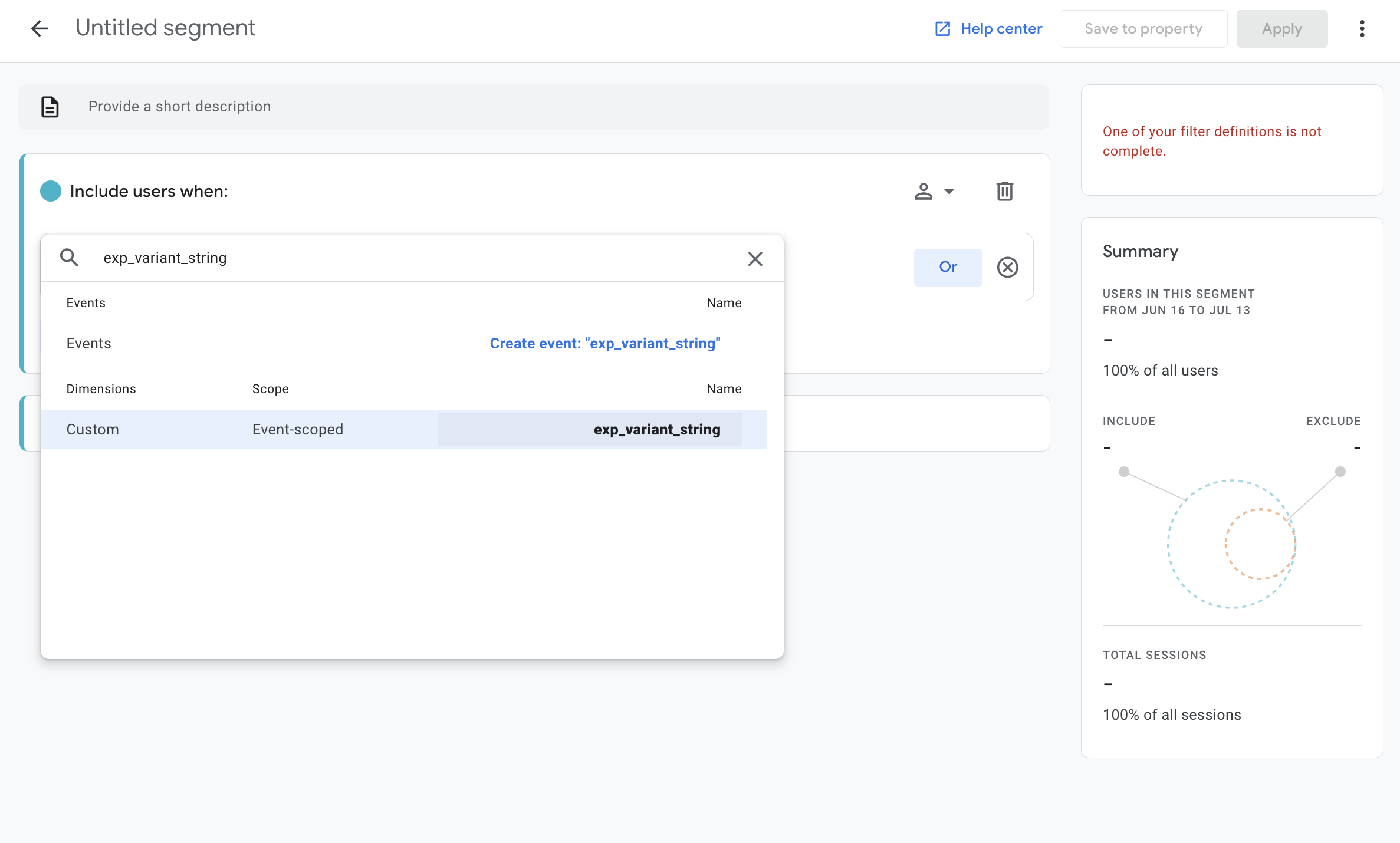
6. Search for and select `exp_variant_string`
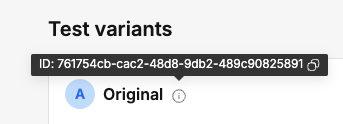
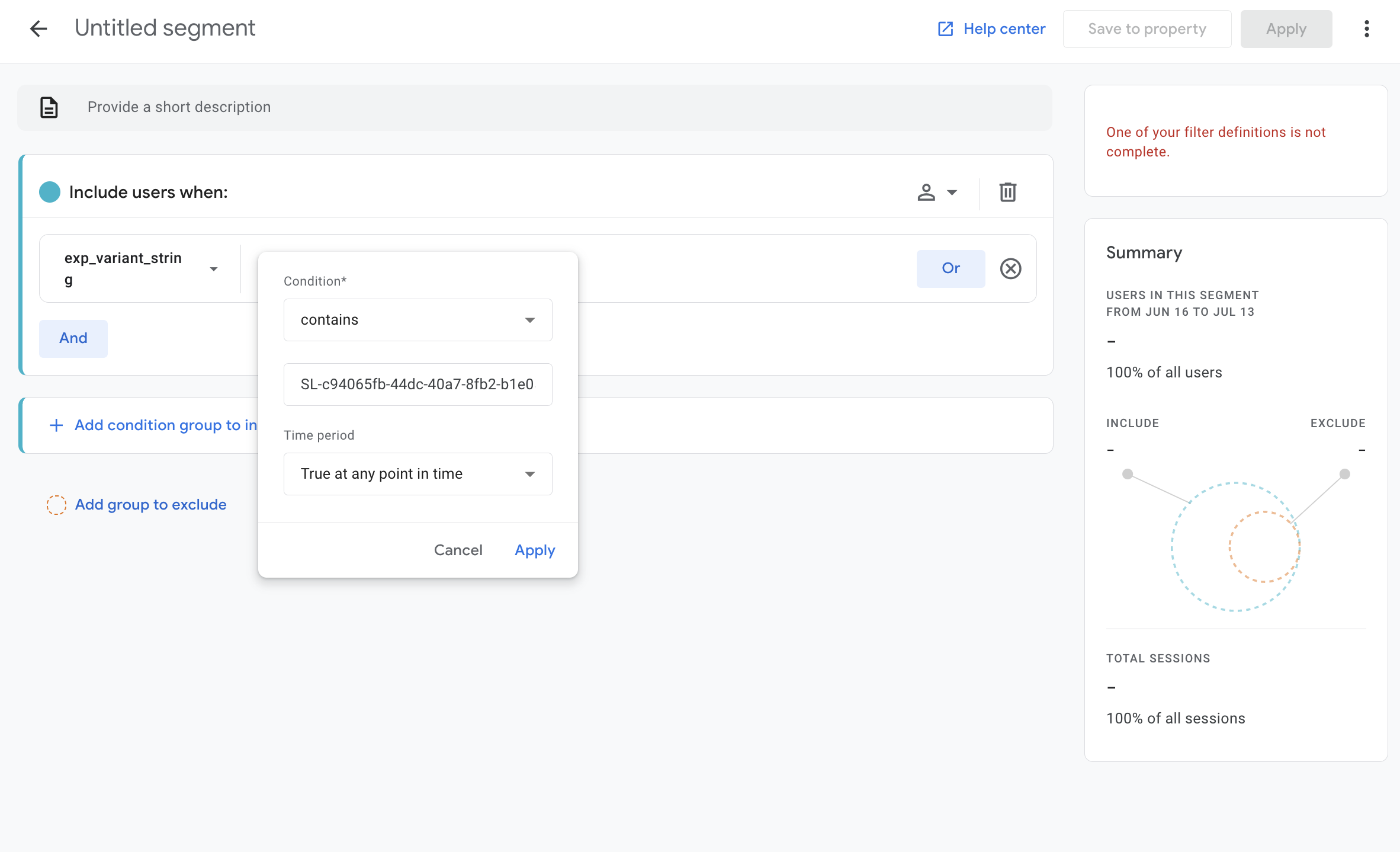
7. Set the condition to **contains** and enter the hypothesis ID for your control variant. To find your hypothesis ID, go to your test report in Shoplift and copy the value from the info tooltip next to the title of your control experience.
8. Once entered, the dropdown will populate with the valid string for your control.
7. Click **Apply** then **Save**
**Step 3: Create a segment for your variant group**
Repeat the process above for your variant:
1. Click **+** next to Segments again
2. Create a new User segment
3. Name it (e.g., "Shoplift - \[Test Name] - Variant")
4. Add a condition where `exp_variant_string` contains your variant's hypothesis ID
5. Click **Apply** then **Save**
**Step 4: Build your comparison report**
1. Drag both segments into the **Segment Comparisons** area in the Tab Settings panel
2. Add the **Dimensions** you want to analyze (e.g., Device category, Landing page)
3. Add the **Metrics** you want to compare (e.g., Sessions, Conversions, Purchase revenue)
4. Your Exploration will now show these metrics side-by-side for control vs. variant
***
### Understanding GA4 data scopes
{% hint style="info" %}
GA4 organizes data into four scope levels: **User > Session > Event > Item**. Understanding how these scopes interact is important for building accurate Explorations, because combining metrics from different scopes can produce unexpected results.
{% endhint %}
#### Why scopes matter for test analysis
The `exp_variant_string` parameter is **event-scoped**. It is attached only to the `experience_impression` event and does not carry forward to subsequent events like `purchase` or `add_to_cart`. A purchase event from the same visitor will show `(not set)` for `exp_variant_string`.
This is exactly why the steps above use **User Segments** rather than dimension filters. A User Segment identifies visitors who fired `experience_impression` with a specific variant string, then includes **all of that visitor's events** (purchases, add-to-carts, page views, etc.) across all their sessions. A dimension filter, by contrast, would only return the `experience_impression` events themselves — hiding all downstream conversions.
#### Why adding metrics or dimensions can change your visitor count
When you add a dimension like "Event name" as a row in your Exploration, GA4 breaks the data into one row per event name. The **Total users** figure in each row shows visitors who fired that specific event within the segment, not the full segment population. A visitor who is in the segment but never fired `add_to_cart` won't appear in the `add_to_cart` row.
Similarly, if you apply an event-scoped filter (e.g., Event name = `add_to_cart`), the displayed visitor count drops to only the subset of segment visitors who fired that event. This is expected GA4 behavior, not a bug — but it is frequently misinterpreted as data loss.
#### Why item-scoped metrics reduce your visitor count
Some GA4 metrics operate at different scope levels. **Item Revenue** is item-scoped, while **Total users** is user-scoped. When you add Item Revenue to an Exploration that shows Total users, GA4 must join user-level data with item-level data. Only visitors who have matching item-level events (i.e., purchasers) produce rows. Visitors who were part of the test but never triggered an ecommerce event simply disappear from the report.
This is why Item Revenue is **not reliably cross-combinable** with event-scoped metrics like Ecommerce Purchases in the same Exploration. They operate at different scopes and produce misleading aggregations when combined. If you need both metrics, build separate Explorations for each.
***
### Recommended metrics for comparing with Shoplift
{% hint style="info" %}
When building GA4 Explorations to validate or compare against Shoplift's test results, use these specific metrics for the most accurate comparison.
{% endhint %}
#### Visitors: use Total users
GA4 has two user metrics that are easy to confuse:
* **Total users** counts anyone who triggered any event (including `session_start`).
* **Active users** (the default "Users" metric in standard reports) requires an engaged session (10+ seconds, 2+ page views, or a conversion event).
Always use **Total users** when comparing against Shoplift's visitor count.
#### Add to cart: count unique visitors, not events
GA4's `add_to_cart` event fires once per item addition. If a visitor adds 3 items, 3 events fire. Shoplift's "Added to Cart" metric tracks whether a visitor added anything at all — it's a yes/no per visitor.
To create a comparable metric in GA4:
1. Create a **User Segment** with the condition `event_name = add_to_cart`
2. Use **Total users** as the metric
This gives you the count of unique visitors who performed at least one add-to-cart action, which matches Shoplift's definition. Do not use "Event count" for `add_to_cart` (that counts total item additions, not unique visitors).
#### Revenue: use Product revenue, not Item revenue
GA4 offers several revenue metrics, and choosing the wrong one is the most common cause of revenue discrepancies:
* **Item Revenue** is item-scoped. It reflects gross pre-discount revenue — GA4 does not automatically subtract `item.discount` from `item.price`. For stores running frequent promotions, this alone can inflate revenue by 15–30%. Item Revenue is also not reliably cross-combinable with event-scoped metrics like Ecommerce Purchases in the same Exploration.
* **Product Revenue** is a better comparison point. While GA4 and Shoplift still calculate product revenue totals differently, the gap is smaller and more predictable than with Item Revenue.
Shoplift calculates revenue using the actual amount paid by the customer (post-discount, excluding taxes and shipping), pulled directly from Shopify's order data.
#### Custom GA events
If you're using your own custom GTM events (e.g., a custom add-to-cart event or engagement event) to compare with Shoplift data, keep two things in mind:
* Make sure your custom events are **event-scoped**. This is the default for custom events in GA4.
* Always analyze custom events using **User Segments**, not dimension filters. A dimension filter on `exp_variant_string` will only return `experience_impression` events, and your custom events will be filtered out because they don't carry that parameter.
#### Sampling
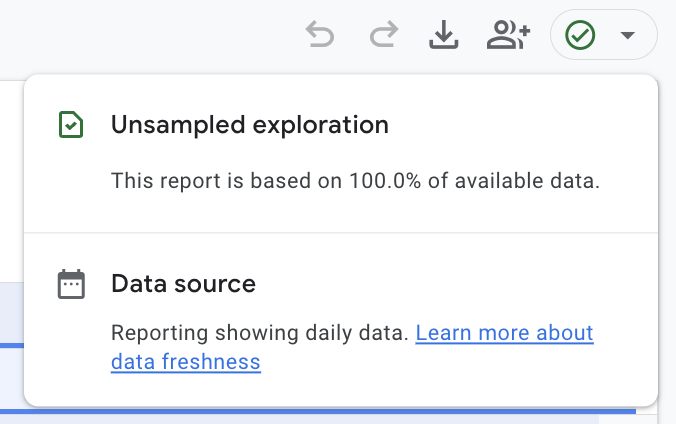
If the icon in the top-right corner of your Exploration shows yellow or orange instead of a green checkmark, your data is being sampled. GA4 activates sampling when a query exceeds approximately 10 million events.
{% hint style="warning" %}
Sampled data can randomly inflate or deflate one variant relative to another, which can create the appearance of a meaningful difference where none exists.
{% endhint %}
The most effective fix is to **shorten your date range**. Longer date ranges, multiple segments, and high-cardinality dimensions all increase the likelihood of sampling.
***
### Tips for Effective Test Analysis
**Set appropriate date ranges.** Only include data from when the test was actively running. Exclude any periods when the test was paused.
**Account for statistical significance.** GA4 doesn't calculate statistical significance for you. Use Shoplift's built-in reporting for significance calculations, and use GA4 Explorations for deeper behavioral analysis.
**Filter by device if needed.** If your test targets specific devices, make sure to filter your Exploration accordingly to avoid skewed results.
***
### Pausing experiments
Google Analytics doesn't support pausing audiences, so Shoplift can't pause audience data collection when you pause a test. If visitors who were previously assigned to a test return to your store while the test is paused, their events will still be sent to GA4.
When analyzing data for a test that was paused:
* Set your date range to only include the period when the test was actively running
* Avoid date ranges that span across pause/resume periods
***
### Audience durations
Shoplift sets audience membership duration to the maximum of 540 days. This means a visitor who participated in a test will remain in that test's audience for up to 540 days, allowing for long-term analysis of test participants' behavior.