> For the complete documentation index, see [llms.txt](https://docs.shoplift.ai/llms.txt). Markdown versions of documentation pages are available by appending `.md` to page URLs; this page is available as [Markdown](https://docs.shoplift.ai/integrate/ga4-beta/set-up-ga4-integration.md).
# Set Up GA4 Integration
{% hint style="info" %}
Depending on how your store has implemented Google Analytics, multiple integration methods are available. Google Tag Manager is the recommended method, as it provides the most reliable data flow and gives you full control over your analytics implementation.
{% endhint %}
{% tabs %}
{% tab title="Google Tag Manager (Recommended)" %}
Google Tag Manager provides the most reliable integration with full control over how events flow to GA4. This is the recommended method for all stores.
#### Prerequisites
Before you begin, make sure you have:
* A Google Tag Manager container installed on your store with a Google Analytics 4 tag configured
* Access to the Google Analytics property you want to connect (you'll authorize this in Shoplift)
* Permission to create Audiences in GA4 using the Google account you'll connect
* Permission to publish changes to your GTM container
* Permission to create custom definitions in GA4 to register the event as a custom dimension (Admin > Custom definitions)
#### Step 1: Connect GA4 in Shoplift
Start by authorizing Shoplift to access your Google Analytics property:
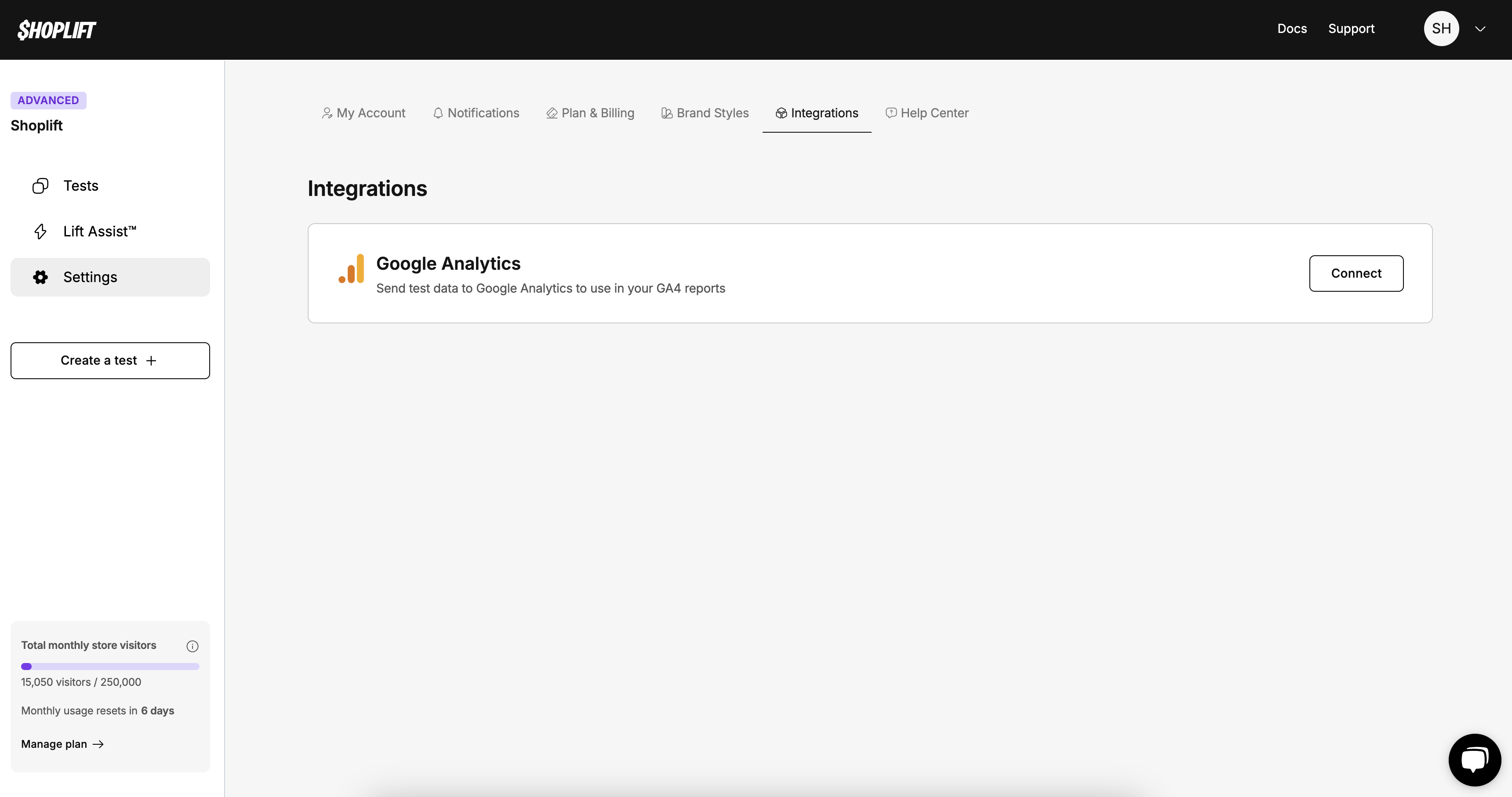
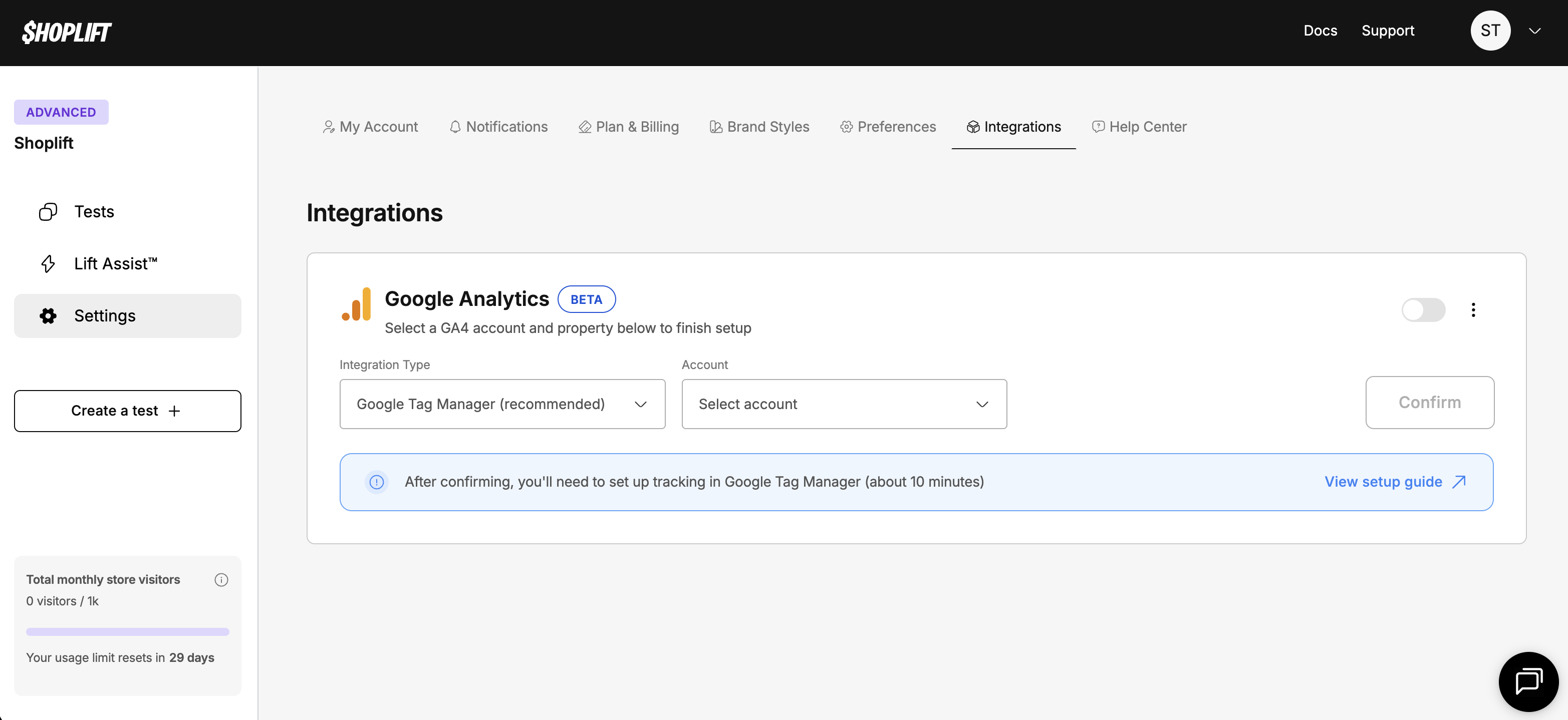
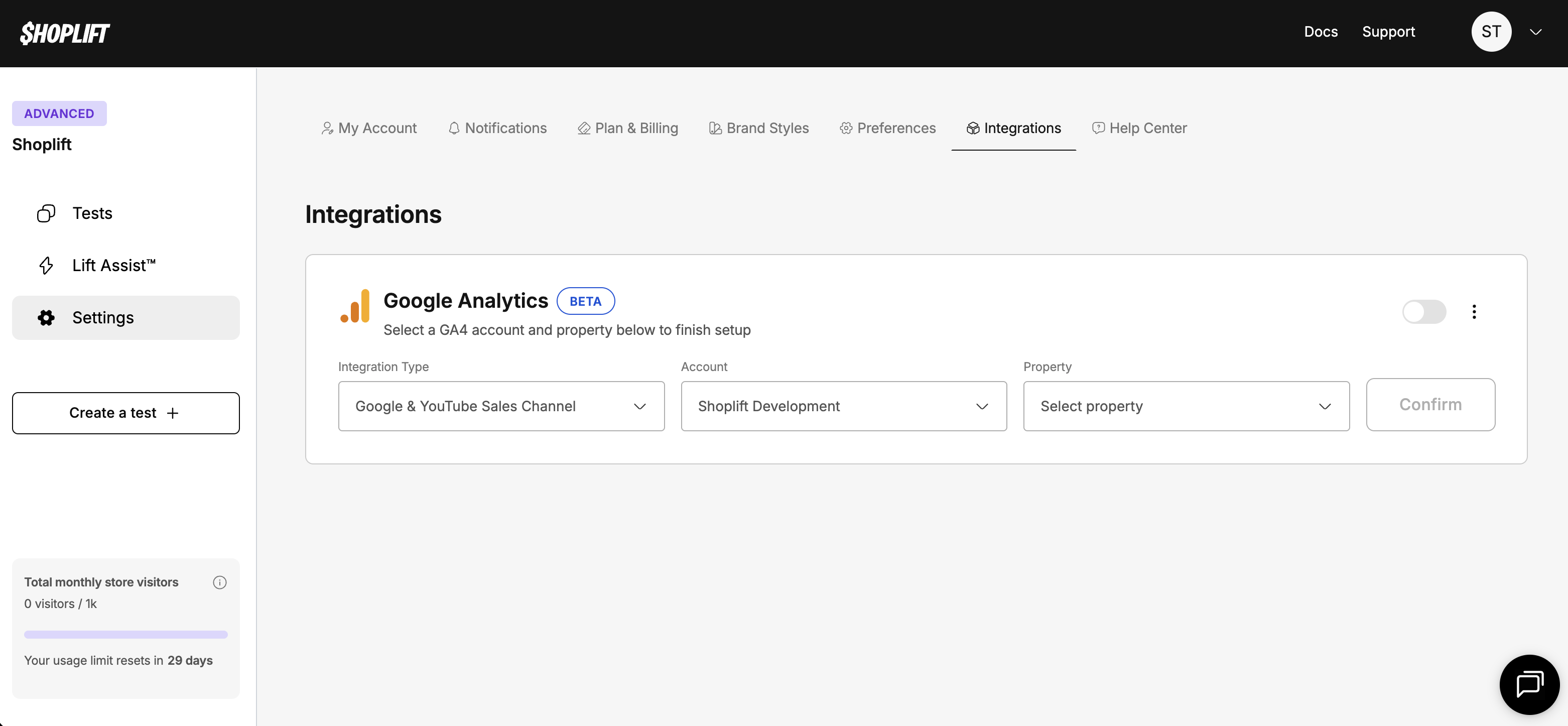
1. In Shoplift, navigate to **Settings → Integrations**
2. Find the Google Analytics section and click **Connect**
3. Sign in with the Google account that has access to your GA4 property
4. When prompted, grant Shoplift permission to "Edit Google Analytics management entities" — this allows Shoplift to create audiences for your tests
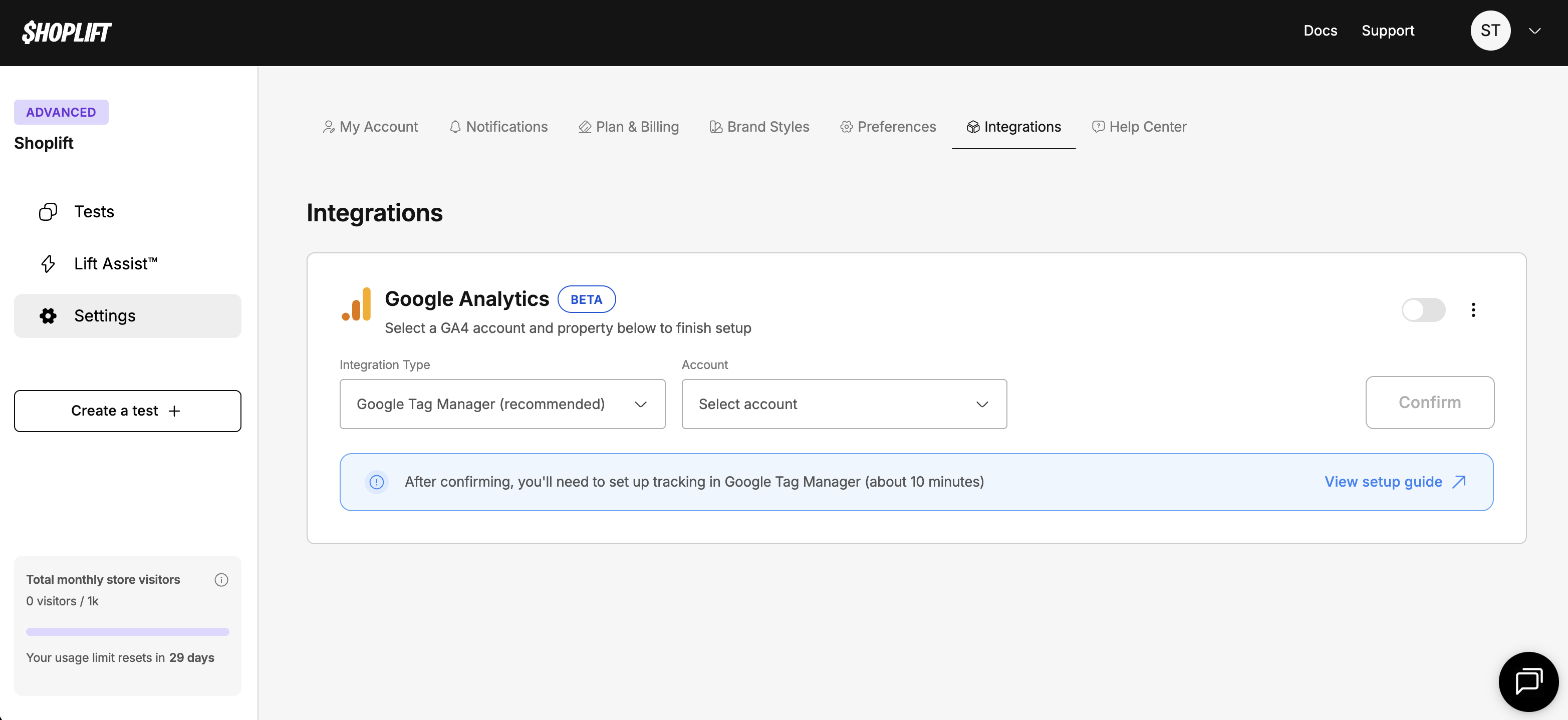
5. Set the integration type to "Google Tag Manager (recommended)"
6. Select your GA4 account and property from the dropdowns and click **Confirm**
The integration will toggle on, confirming that Shoplift and GA4 are now connected.
#### Step 2: Create the Data Layer Variable in GTM
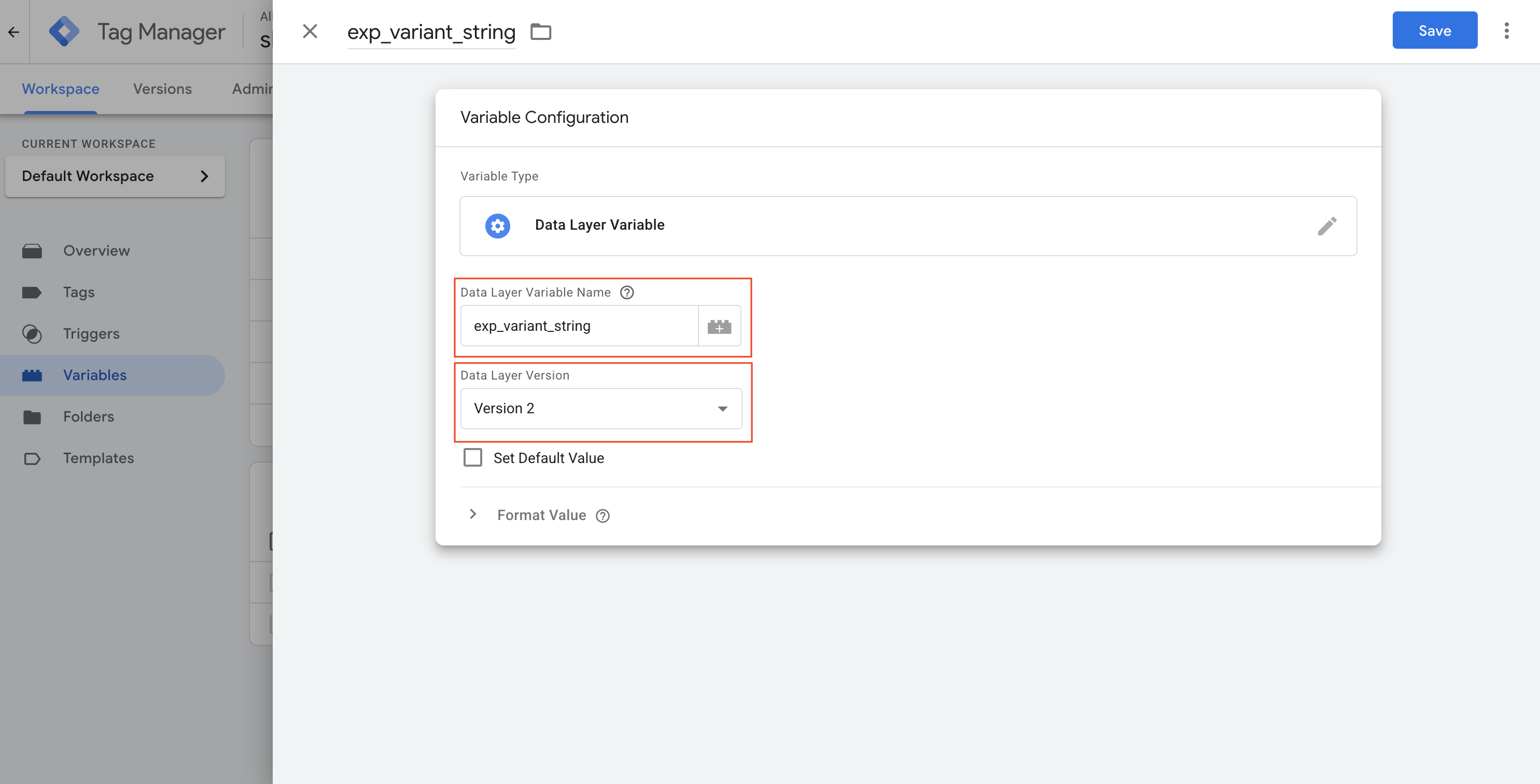
Shoplift pushes test data to the data layer using a variable called `exp_variant_string`. You need to create this variable in GTM so it can be passed to GA4:
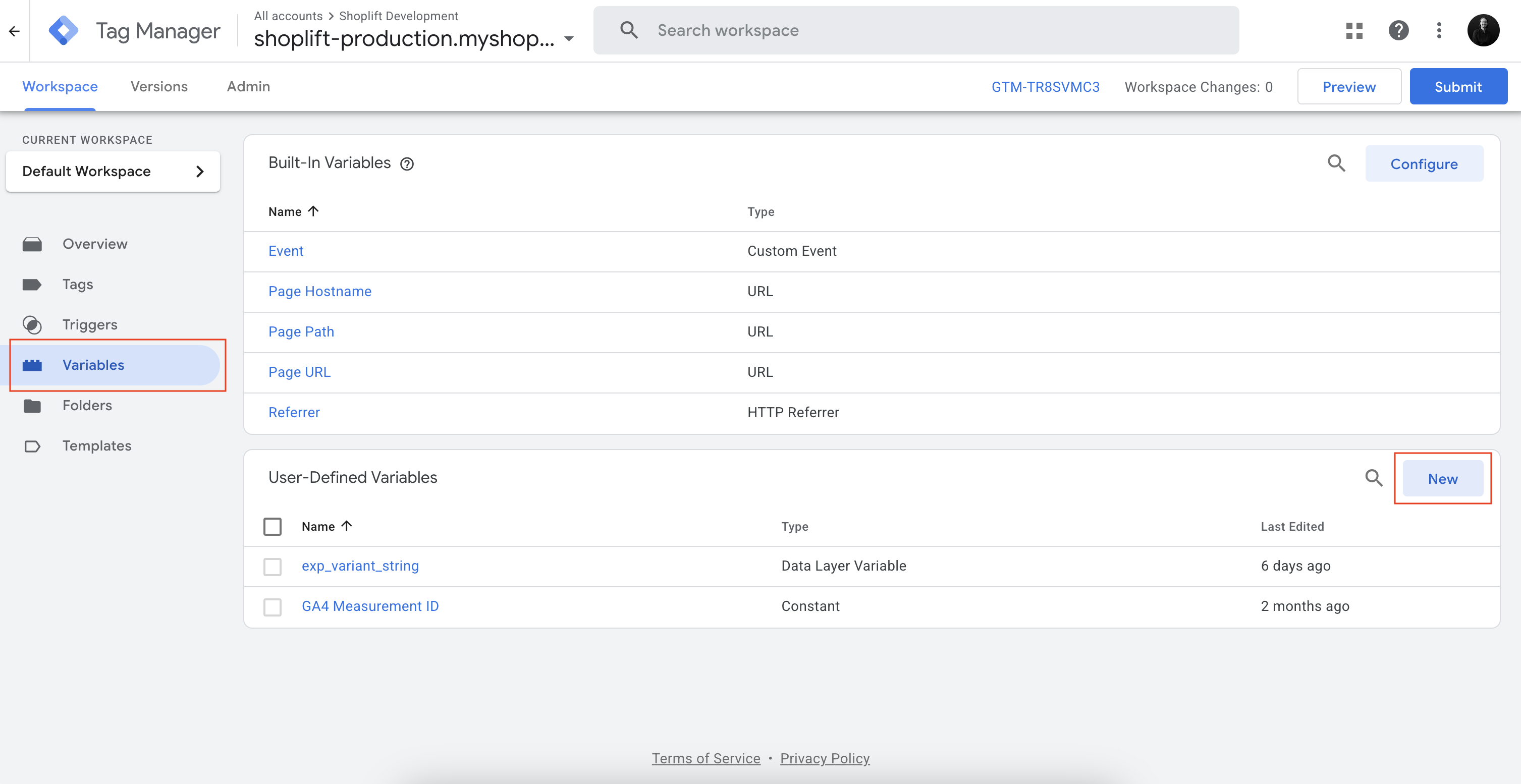
1. In Google Tag Manager, go to **Variables**
2. Under **User-Defined Variables**, click **New**
3. Name the variable `exp_variant_string`
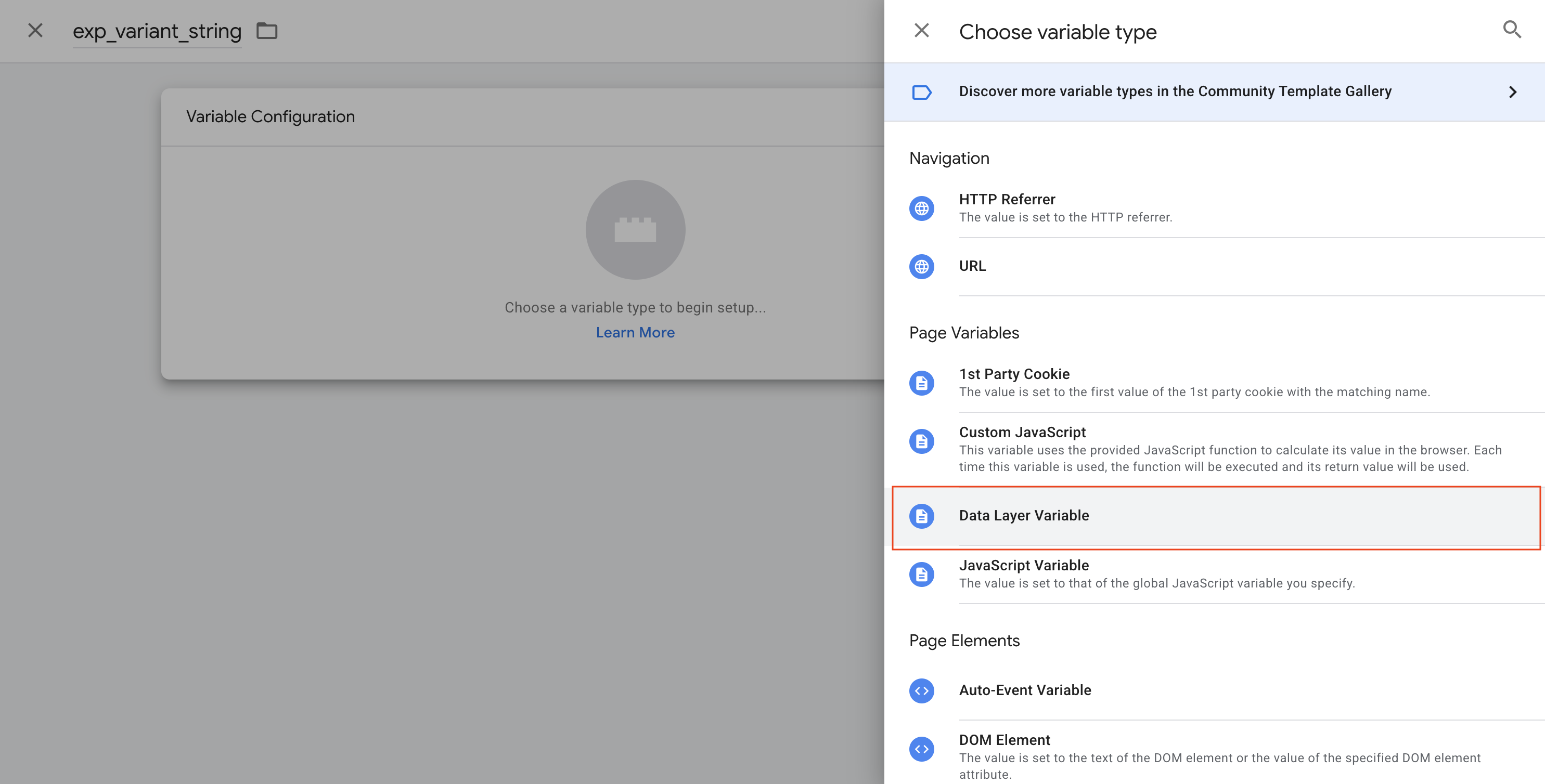
4. Click **Variable Configuration** and select **Data Layer Variable**
5. In the **Data Layer Variable Name** field, enter: `exp_variant_string`
6. Confirm the **Data Layer Version** is set to **Version 2**
7. Click **Save**
#### Step 3: Create the GA4 Event Tag
Now create a tag that sends the `experience_impression` event to GA4:
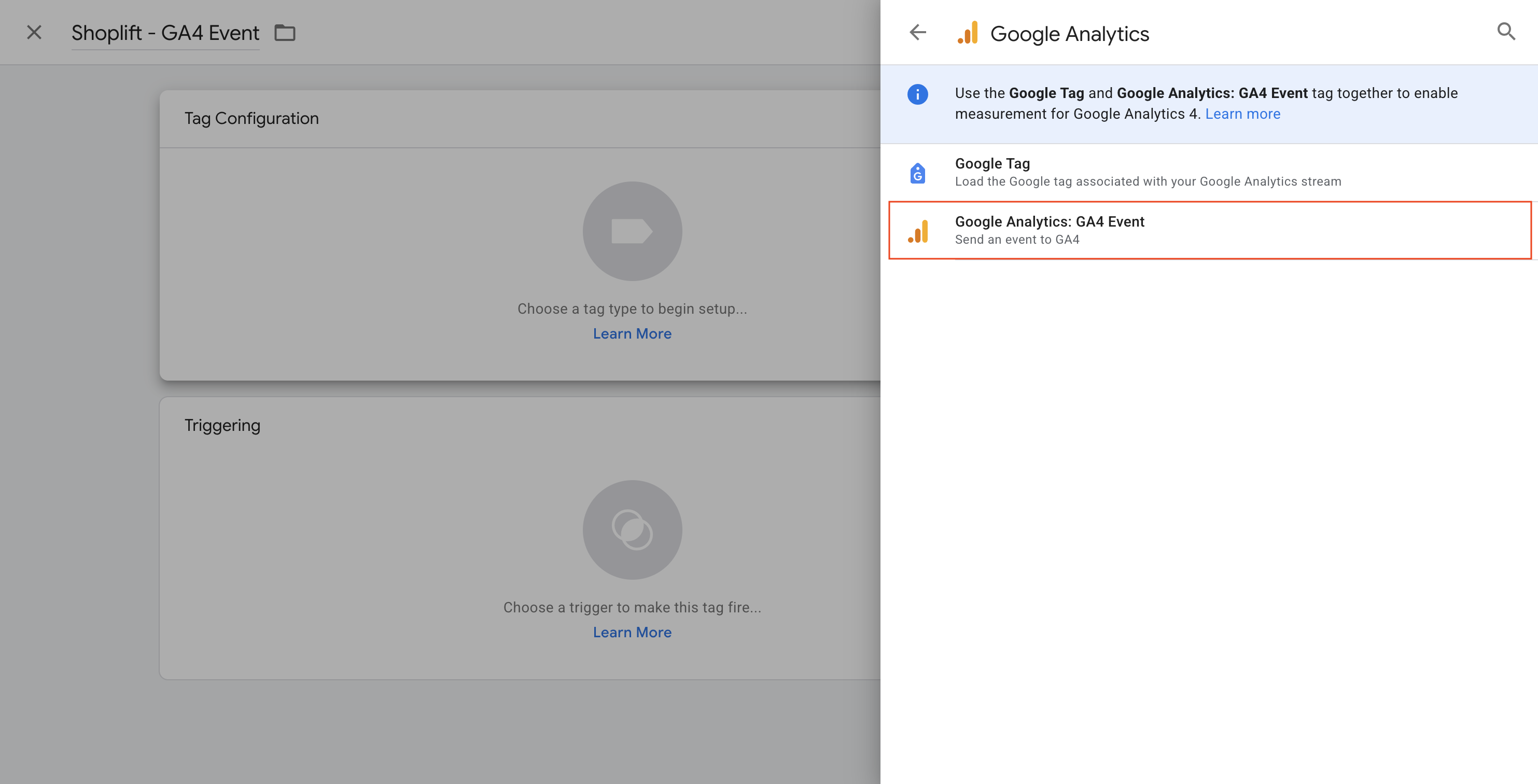
1. In GTM, go to **Tags** and click **New**
2. Name the tag `Shoplift - GA4 Event`
3. Click **Tag Configuration** and select **Google Analytics: GA4 Event**
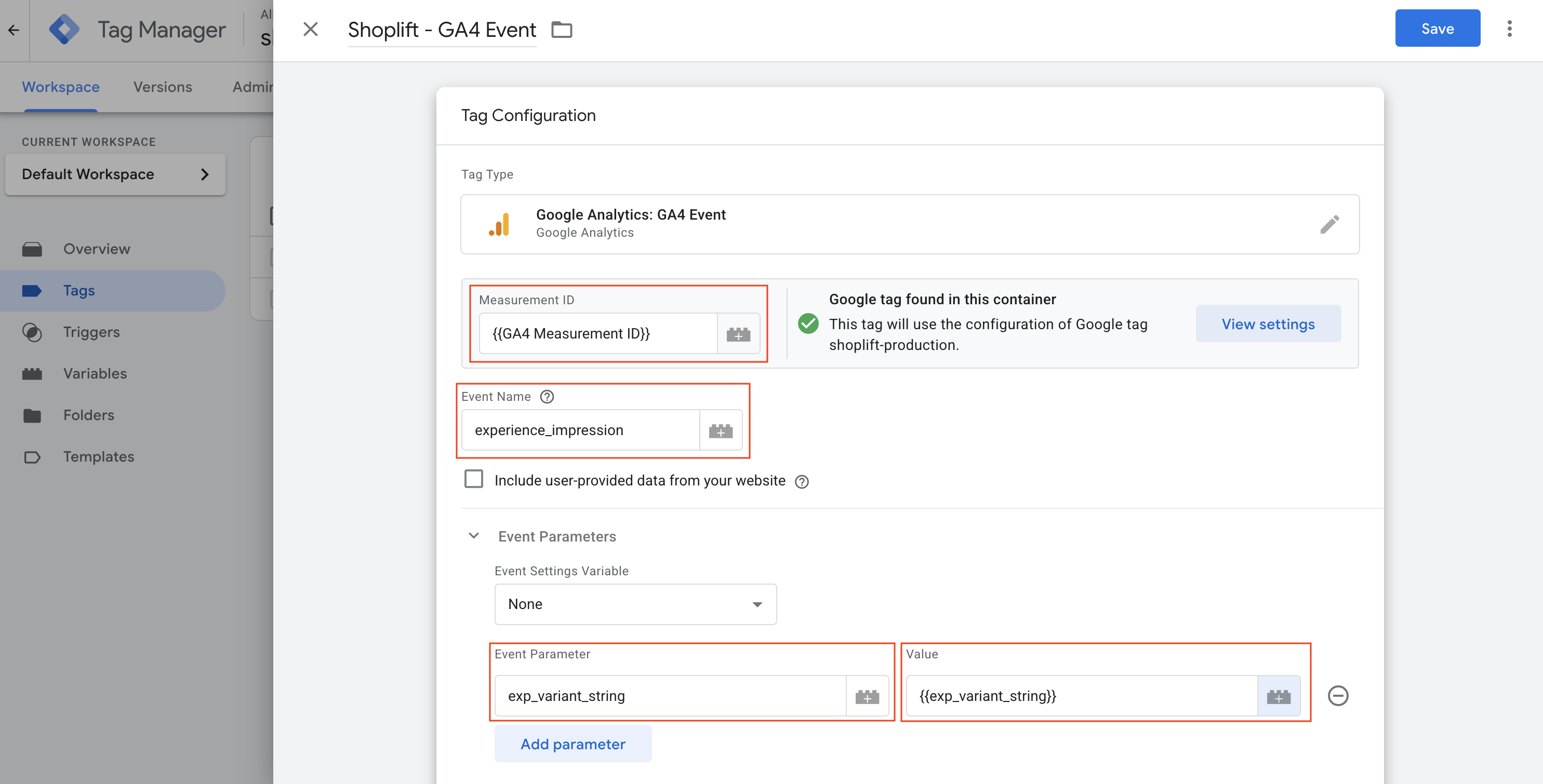
4. In the **Measurement ID** field, enter your GA4 Measurement ID (format: `G-XXXXXXXXXX`) — this should match the property you connected in Shoplift
5. In the **Event Name** field, enter: `experience_impression`
6. Expand **Event Parameters** and click **Add Parameter**
7. Set the **Parameter Name** to: `exp_variant_string`
8. For the **Value**, click the variable picker and select the `exp_variant_string` variable you created in Step 2
9. Click **Save**
#### Step 4: Create the Event Trigger
Create a trigger that fires your tag when Shoplift pushes the experience impression event:
1. In the tag you just created, click **Triggering**
2. Click the **+** icon to create a new trigger
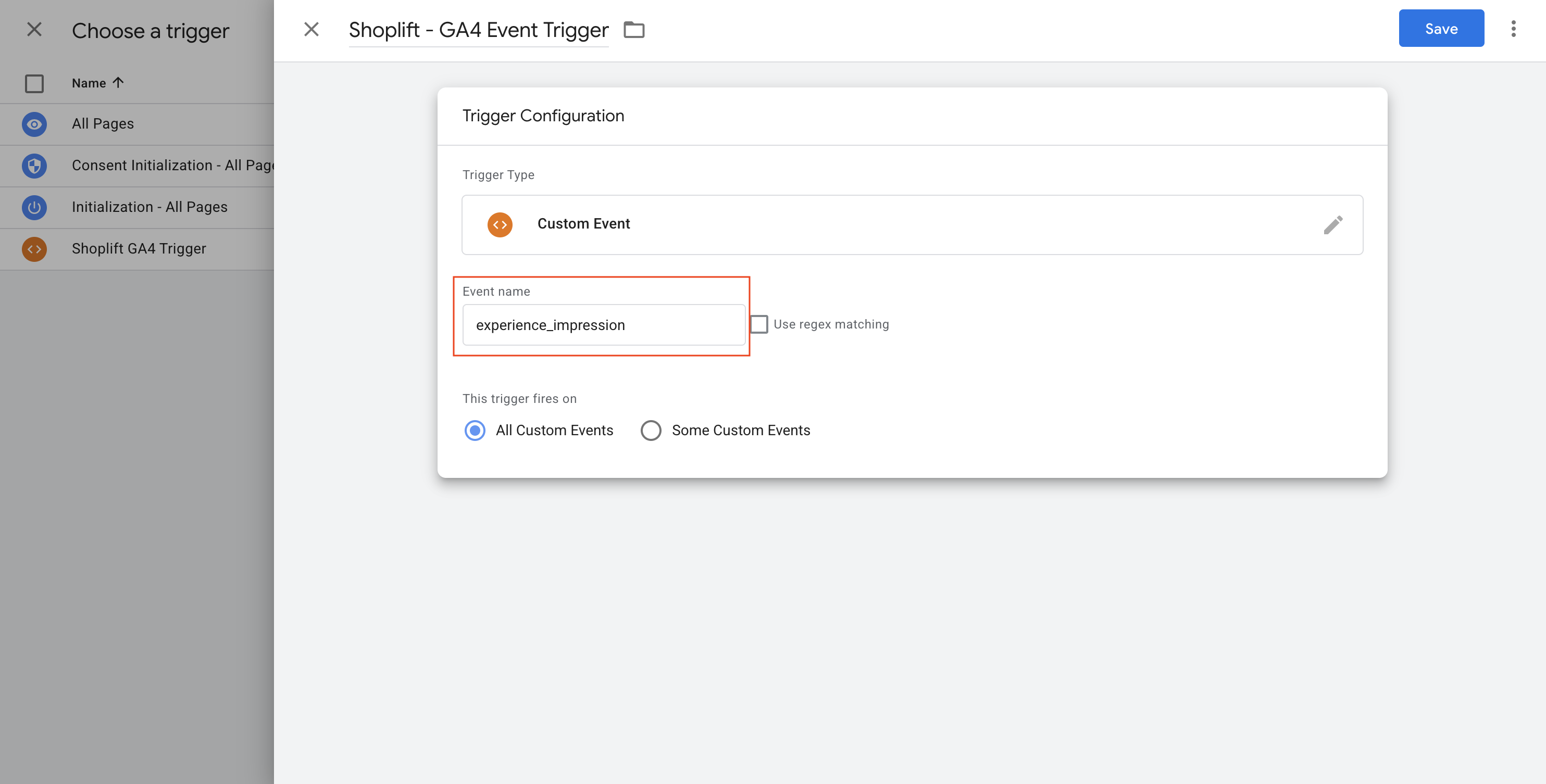
3. Name the trigger `Shoplift - GA4 Event Trigger`
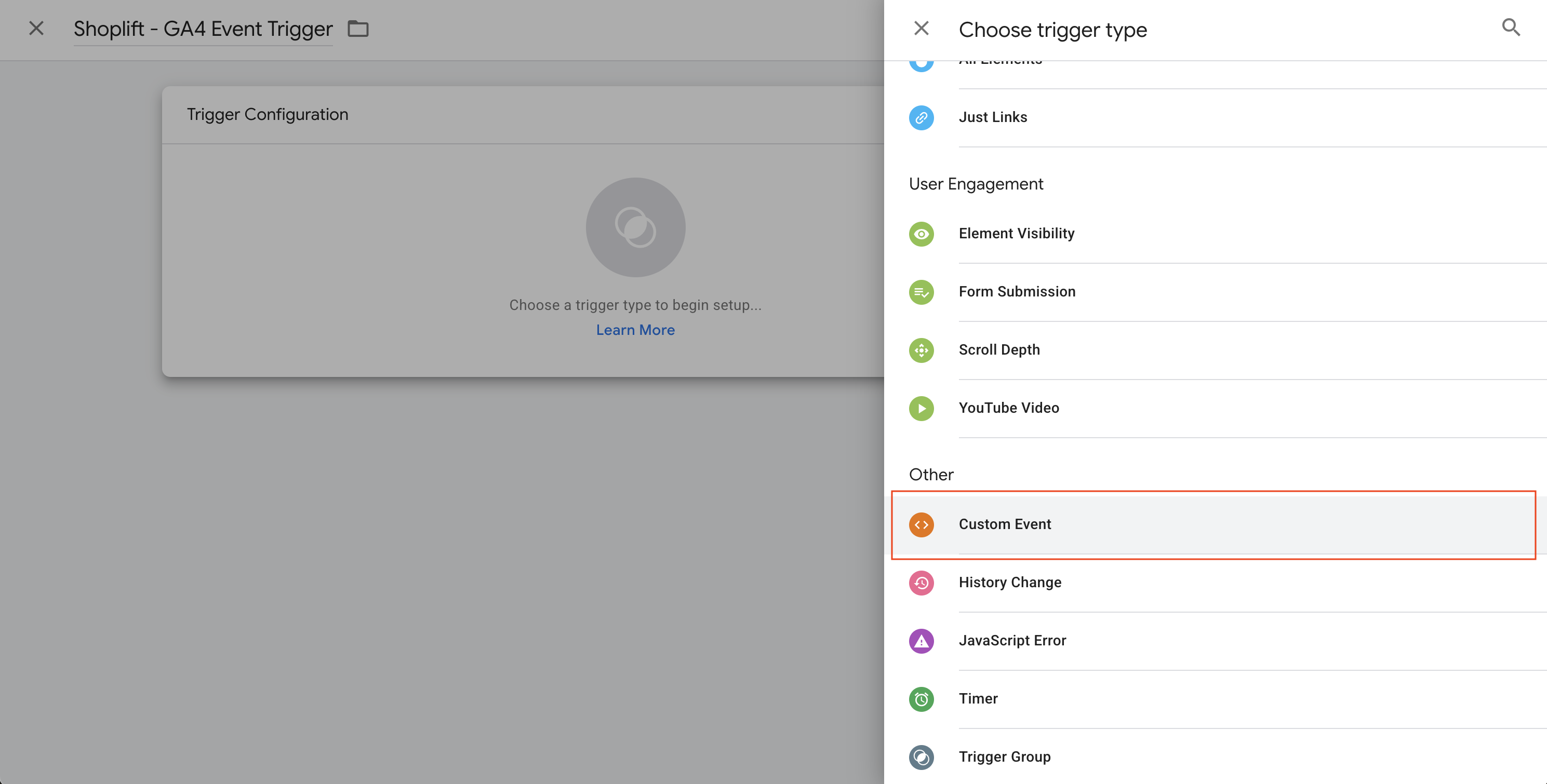
4. Click **Trigger Configuration** and scroll to the **Other** section
5. Select **Custom Event**
1. In the **Event name** field, enter: `experience_impression`
2. Click **Save** to save the trigger
3. Click **Save** again to save the tag
#### Step 5: Publish Your Changes
Click **Submit** in GTM, then **Publish** to push your changes live.
Your GTM container is now configured to receive events from Shoplift and forward them to GA4.
#### Step 6: Register the event as a custom dimension in Google Analytics
{% hint style="warning" %}
**Required Step:** You must register `exp_variant_string` as a custom dimension before you can use test data in GA4 Explorations. Skip this step and your test variants won't appear as a segmentation option.
{% endhint %}
GA4 requires event parameters to be registered as custom dimensions before they can be used in reports. Here's how to set this up:
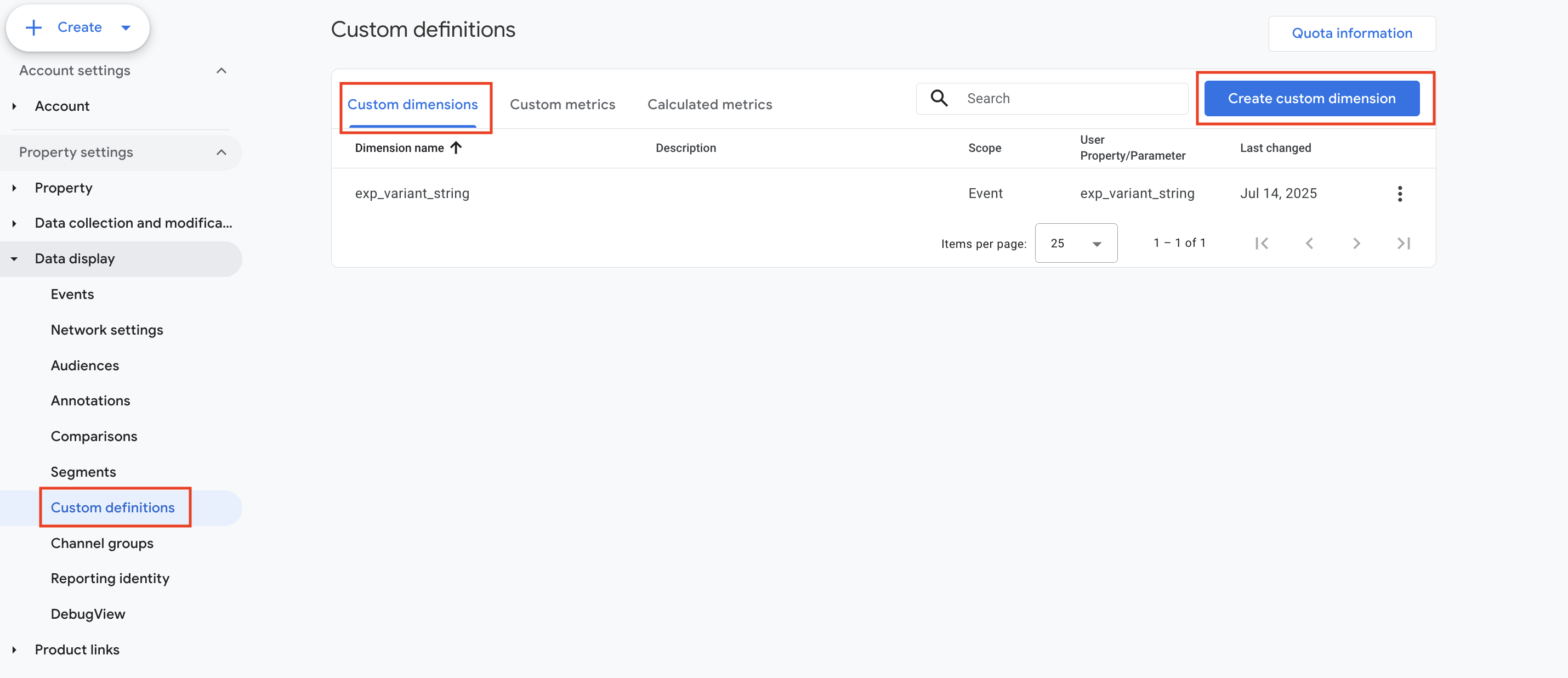
1. In Google Analytics, click **Admin** (gear icon in the bottom left)
2. Under your property, click **Custom definitions**
3. Click **Create custom dimension**
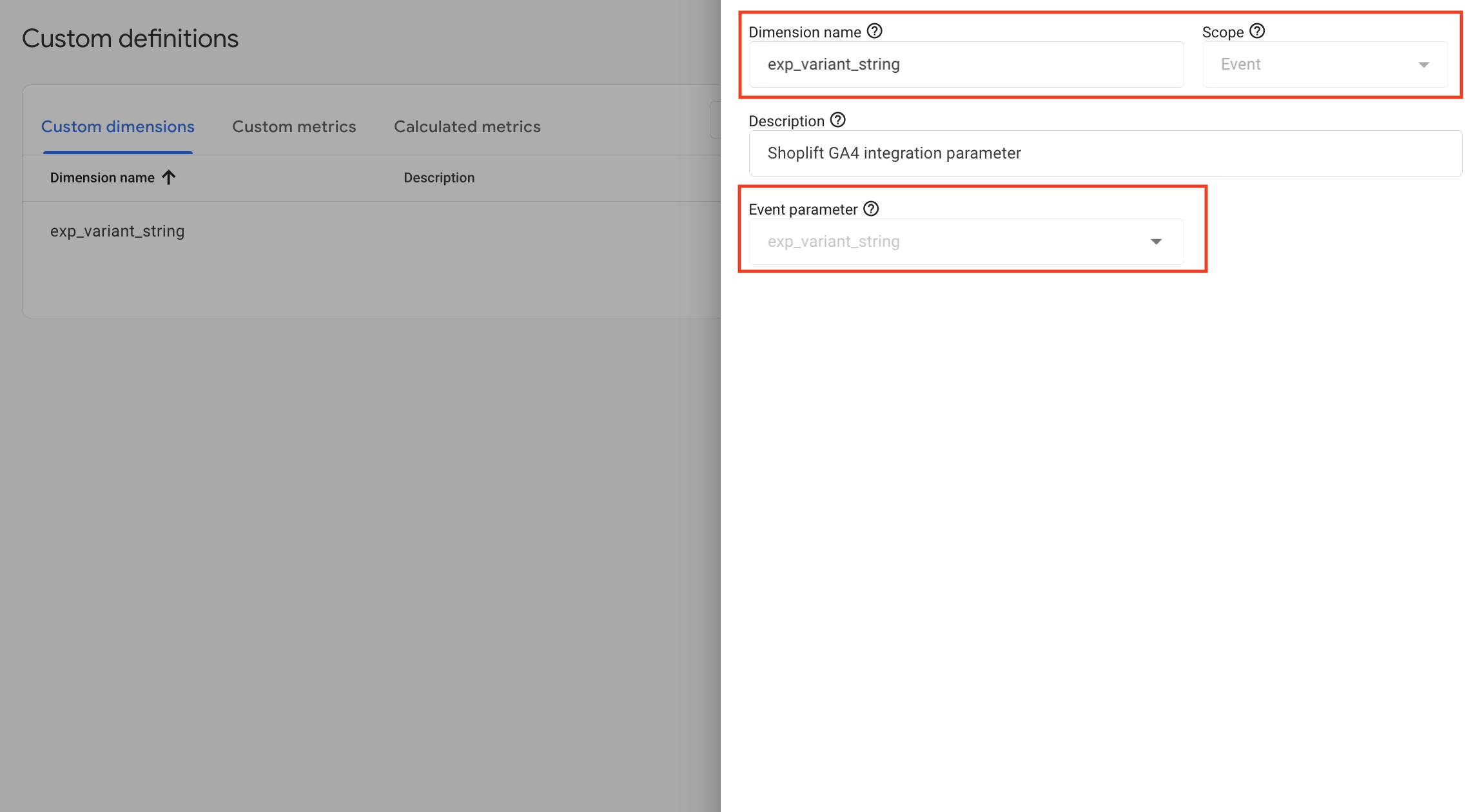
1. Configure the dimension:
* **Dimension name:** `exp_variant_string`
* **Scope:** Event
* **Event parameter:** Select `exp_variant_string` from the dropdown
3. Click **Save**
{% hint style="info" %}
**Note:** If `exp_variant_string` doesn't appear in the Event parameter dropdown, it means GA4 hasn't received any events with this parameter yet. Launch a test in Shoplift and visit your store as a test participant, then return to this step. It may take up to 24 hours for new parameters to appear.
{% endhint %}
Once registered, the custom dimension will be available for use in Explorations within 24-48 hours.
{% endtab %}
{% tab title="Elevar (via Google Tag Manager)" %}
If you use Elevar to manage your data layer, follow these instructions. The process is similar to the standard GTM setup with one key difference: you'll configure a trigger group that includes Elevar's user data event and the Shoplift event as distinct triggers.
{% hint style="info" %}
**Note:** These are general instructions. We recommend working with Elevar's support team if you have a complex or customized setup.
{% endhint %}
#### Prerequisites
Before you begin, make sure you have:
* A Google Tag Manager container with Elevar's configuration installed, including the `dl_user_data` event and associated triggers
* Access to the Google Analytics property you want to connect
* Permission to create Audiences in GA4 using the Google account you'll connect
* Permission to publish changes to your GTM container
#### Step 1: Connect GA4 in Shoplift
Start by authorizing Shoplift to access your Google Analytics property:
1. In Shoplift, navigate to **Settings → Integrations**
2. Find the Google Analytics section and click **Connect**
3. Sign in with the Google account that has access to your GA4 property
4. When prompted, grant Shoplift permission to "Edit Google Analytics management entities" — this allows Shoplift to create audiences for your tests
5. Set the integration type to "Google Tag Manager (recommended)"
6. Select your GA4 account and property from the dropdowns and click **Confirm**
The integration will toggle on, confirming that Shoplift and GA4 are now connected.
#### Step 2: Create the Data Layer Variable in GTM
Shoplift pushes test data to the data layer using a variable called `exp_variant_string`. You need to create this variable in GTM so it can be passed to GA4:
1. In Google Tag Manager, go to **Variables**
2. Under **User-Defined Variables**, click **New**
3. Name the variable `exp_variant_string`
4. Click **Variable Configuration** and select **Data Layer Variable**
5. In the **Data Layer Variable Name** field, enter: `exp_variant_string`
6. Confirm the **Data Layer Version** is set to **Version 2**
7. Click **Save**
#### Step 3: Create the GA4 Event Tag
Now create a tag that sends the `experience_impression` event to GA4:
1. In GTM, go to **Tags** and click **New**
2. Name the tag `Shoplift - GA4 Event`
3. Click **Tag Configuration** and select **Google Analytics: GA4 Event**
4. In the **Measurement ID** field, enter your GA4 Measurement ID (format: `G-XXXXXXXXXX`) — this should match the property you connected in Shoplift
5. In the **Event Name** field, enter: `experience_impression`
6. Expand **Event Parameters** and click **Add Parameter**
7. Set the **Parameter Name** to: `exp_variant_string`
8. For the **Value**, click the variable picker and select the `exp_variant_string` variable you created in Step 2
9. Click **Save**
#### Step 4: Create a Trigger Group (Elevar-Specific)
Elevar requires a trigger group that combines the Shoplift event with Elevar's user data event:
1. In the tag's **Triggering** section, click **+** to create a new trigger
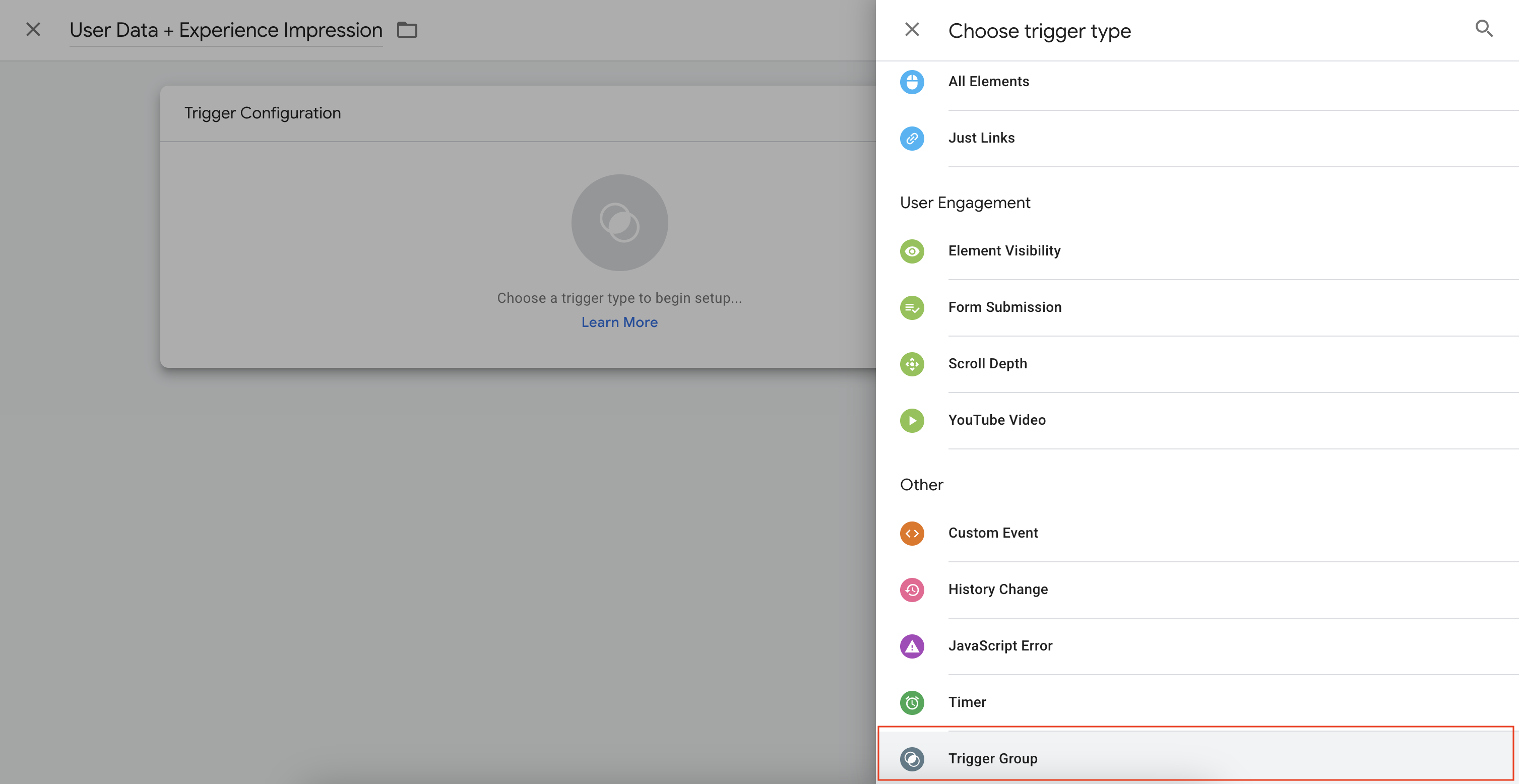
2. Choose **Trigger Group** as the trigger type
3. Name the trigger `User Data + Experience Impression`
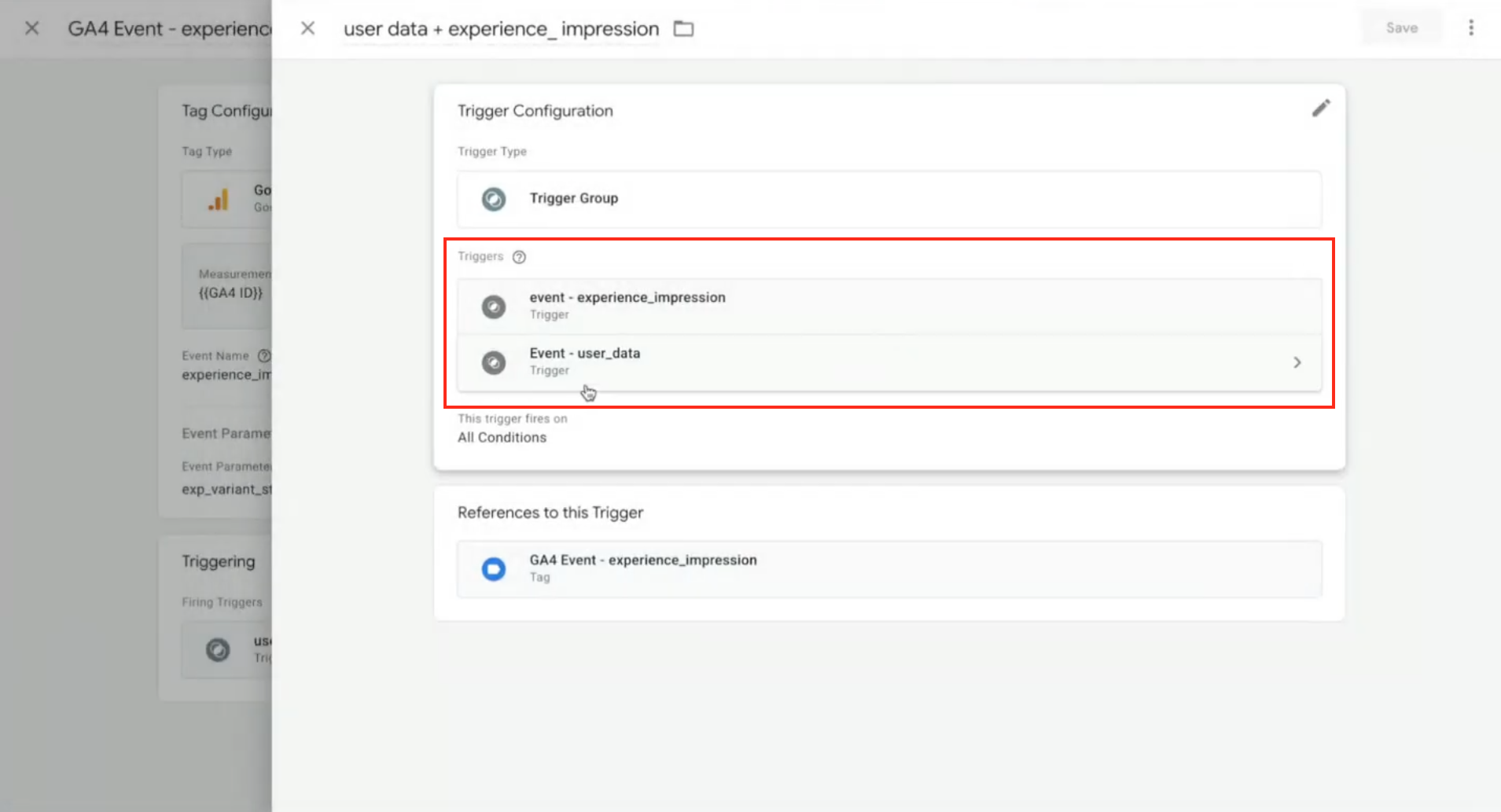
4. Now we'll define the Triggers included in the Trigger Group. This will include a specific **Experience Impression event trigger** that we will create, and an Elevar-specific **User Data event trigger** which should already be created in your Tag Manager container.
5. Click **Choose a trigger.** Create a new trigger by clicking the + icon in the top right.
6. Name your trigger **Shoplift - GA4 Event Trigger**.
7. Click **Trigger Configuration** and scroll down in the window until you see the **Other** section. Select **Custom Event**.
8. In the **Event name** field, enter `experience_impression`
9. Click **Save**
10. Then add another trigger to the trigger group by clicking the + icon.
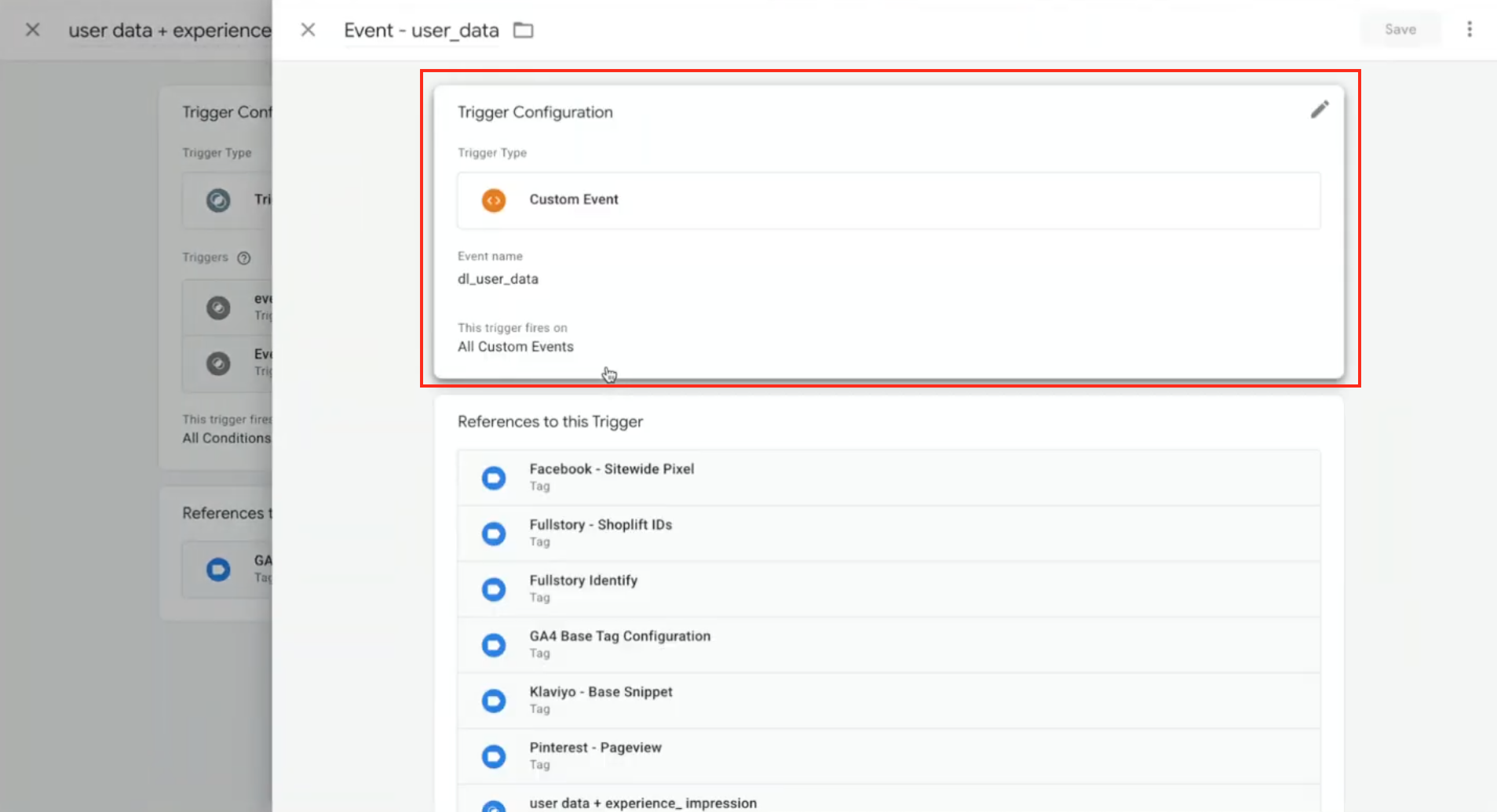
11. Select the **Elevar User Data event trigger**, which will be called something like **Event - user\_data.** To confirm you've selected the correct trigger, you can click into the Elevar trigger to look at it's configuration. The **Trigger Type** should be **Custom Event** and the **Event name** should be `dl_user_data`.
12. Once selected, you will have two triggers in your trigger group.
#### Step 5: Save and Publish
1. Click **Save** to save the trigger group
2. Click **Save** to save the tag
3. Click **Submit** and **Publish** in GTM
Click **Submit** in GTM, then **Publish** to push your changes live.
Your GTM container is now configured to receive events from Shoplift and forward them to GA4.
#### Step 6: Register the event as a custom dimension in Google Analytics
{% hint style="warning" %}
**Required Step:** You must register `exp_variant_string` as a custom dimension before you can use test data in GA4 Explorations. Skip this step and your test variants won't appear as a segmentation option.
{% endhint %}
GA4 requires event parameters to be registered as custom dimensions before they can be used in reports. Here's how to set this up:
1. In Google Analytics, click **Admin** (gear icon in the bottom left)
2. Under your property, click **Custom definitions**
3. Click **Create custom dimension**
1. Configure the dimension:
* **Dimension name:** `exp_variant_string`
* **Scope:** Event
* **Event parameter:** Select `exp_variant_string` from the dropdown
3. Click **Save**
{% hint style="info" %}
**Note:** If `exp_variant_string` doesn't appear in the Event parameter dropdown, it means GA4 hasn't received any events with this parameter yet. Launch a test in Shoplift and visit your store as a test participant, then return to this step. It may take up to 24 hours for new parameters to appear.
{% endhint %}
Once registered, the custom dimension will be available for use in Explorations within 24-48 hours.
{% endtab %}
{% tab title="Google & YouTube Sales Channel" %}
If you've connected GA4 to your store through Shopify's built-in Google & YouTube sales channel, you can set up the Shoplift integration with minimal configuration.
{% hint style="warning" %}
**Data Accuracy Notice:** The Google & YouTube sales channel integration may produce data discrepancies between Shoplift and GA4 due to how Shopify processes and forwards events. If you observe inconsistencies in your test data, we recommend migrating to a Google Tag Manager integration for more reliable tracking.
{% endhint %}
{% hint style="info" %}
Using [Littledata](https://apps.shopify.com/google-analytics-littledata) for your GA4 Shopify connection? Follow the steps below - no additional set up is required.
Not using Littledata? Shoplift recommends it over the Google & YouTube sales channel. [Learn more](https://www.littledata.io/shopify/google-analytics)
{% endhint %}
#### Prerequisites
* Google Analytics 4 connected to your store via the Google & YouTube sales channel
* Access to the GA4 property to authorize the connection
* Permission to create Audiences in GA4
#### Step 1: Authorize the connection
The Google & YouTube sales channel integration requires only the Shoplift authorization step—no tag manager configuration is needed:
1. In Shoplift, navigate to **Settings → Integrations**
2. Click **Connect** next to Google Analytics
3. Sign in with the Google account connected to your GA4 property
4. Grant Shoplift permission to "Edit Google Analytics management entities"
5. Set "Google and YouTube Sales Channel" as the integration type
6. Select your GA4 property from the dropdown
7. Click **Confirm**
The integration will toggle on. Shoplift will now automatically create audiences for your tests and send visitor events to GA4.
#### Step 2: Register the event as a custom dimension in Google Analytics
{% hint style="warning" %}
**Required Step:** You must register `exp_variant_string` as a custom dimension before you can use test data in GA4 Explorations. Skip this step and your test variants won't appear as a segmentation option.
{% endhint %}
GA4 requires event parameters to be registered as custom dimensions before they can be used in reports. Here's how to set this up:
1. In Google Analytics, click **Admin** (gear icon in the bottom left)
2. Under your property, click **Custom definitions**
3. Click **Create custom dimension**
1. Configure the dimension:
* **Dimension name:** `exp_variant_string`
* **Scope:** Event
* **Event parameter:** Select `exp_variant_string` from the dropdown
3. Click **Save**
{% hint style="info" %}
**Note:** If `exp_variant_string` doesn't appear in the Event parameter dropdown, it means GA4 hasn't received any events with this parameter yet. Launch a test in Shoplift and visit your store as a test participant, then return to this step. It may take up to 24 hours for new parameters to appear.
{% endhint %}
Once registered, the custom dimension will be available for use in Explorations within 24-48 hours.
{% endtab %}
{% endtabs %}
{% hint style="info" %}
Ready to analyze your data in GA4? See [View Test Data In GA4](/integrate/ga4-beta/view-test-data-in-ga4.md)
{% endhint %}