> For the complete documentation index, see [llms.txt](https://docs.shoplift.ai/llms.txt). Markdown versions of documentation pages are available by appending `.md` to page URLs; this page is available as [Markdown](https://docs.shoplift.ai/test/url-testing/create-a-url-redirect-test.md).
# Create a URL Redirect Test
A URL redirect test sends a portion of your visitors to a completely different page on your store. Instead of changing how a page looks, you're testing which page visitors should see.
{% stepper %}
{% step %}
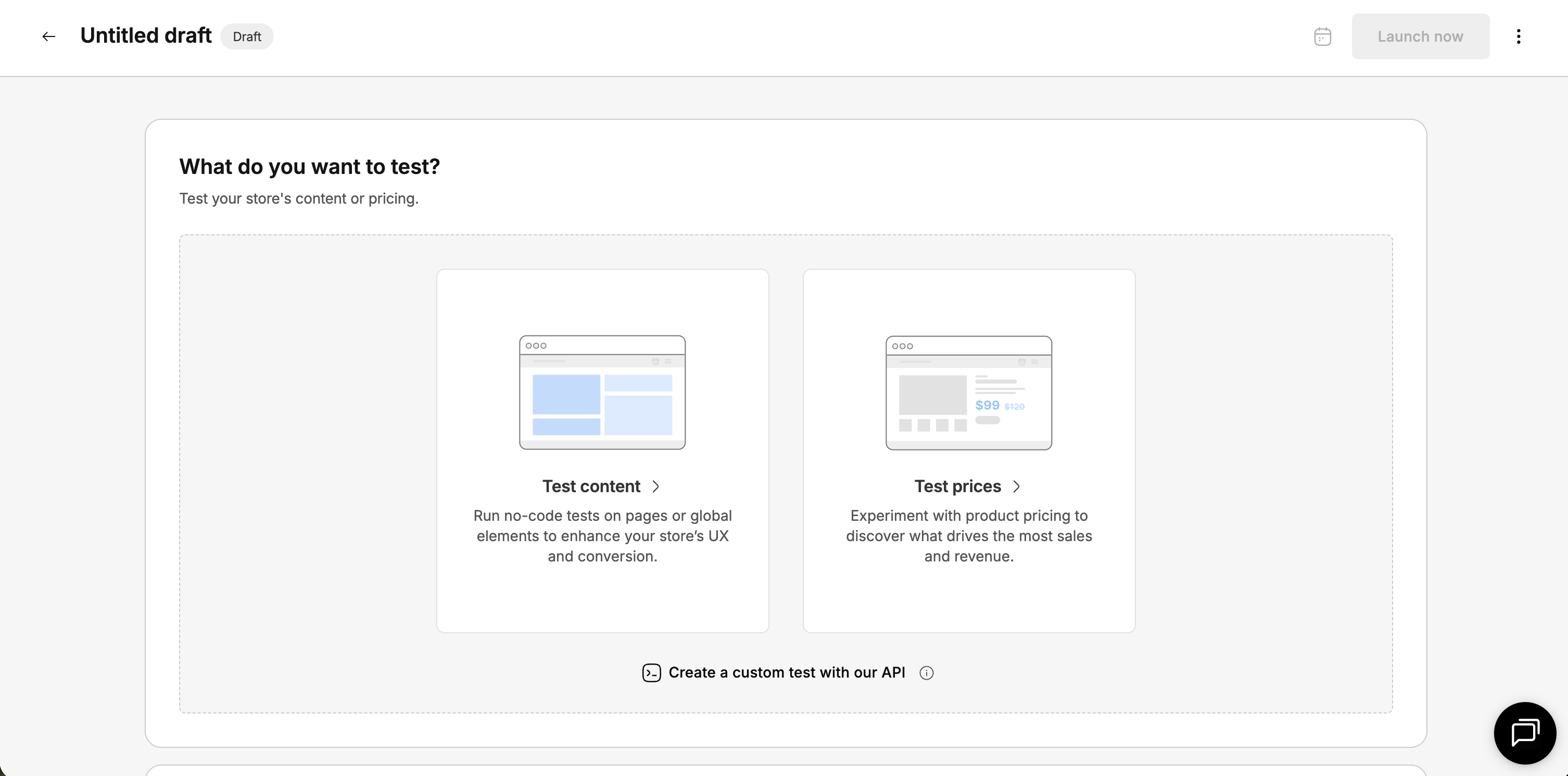
### Create a new test
Open Shoplift and click **Create a test** in the top-right corner.
{% endstep %}
{% step %}
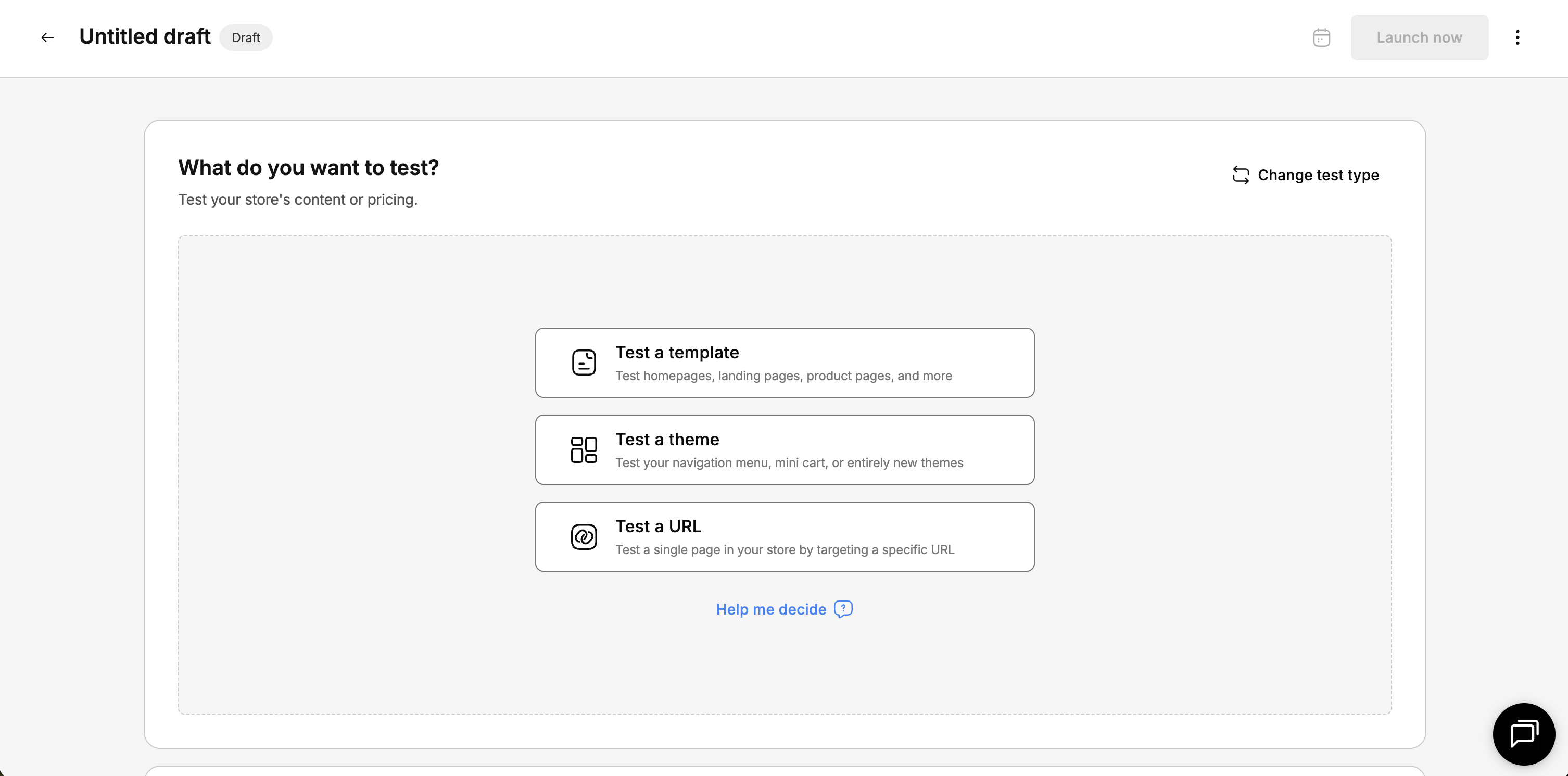
### Select your test type
Choose **Test content.**
Then select **Test a URL**.
{% endstep %}
{% step %}
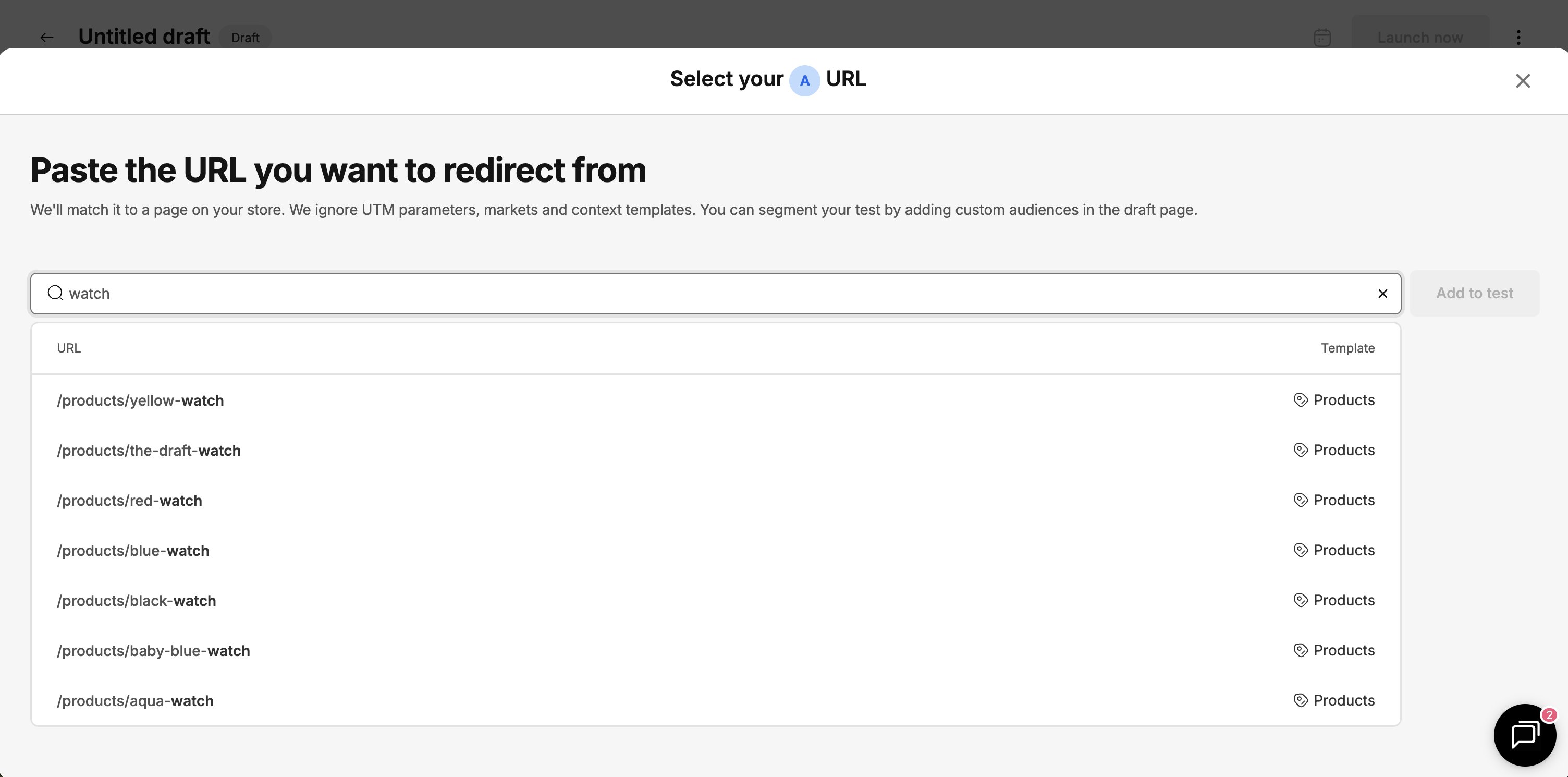
### Choose your original page (A)
The URL drawer opens with a search bar where you can search for or paste the URL of the page you want to test. This is your **A (Original)** — the page your visitors currently land on.
Search by page title or paste a full URL (like `https://your-store.myshopify.com/collections/summer-sale`) to find the page.
{% endstep %}
{% step %}
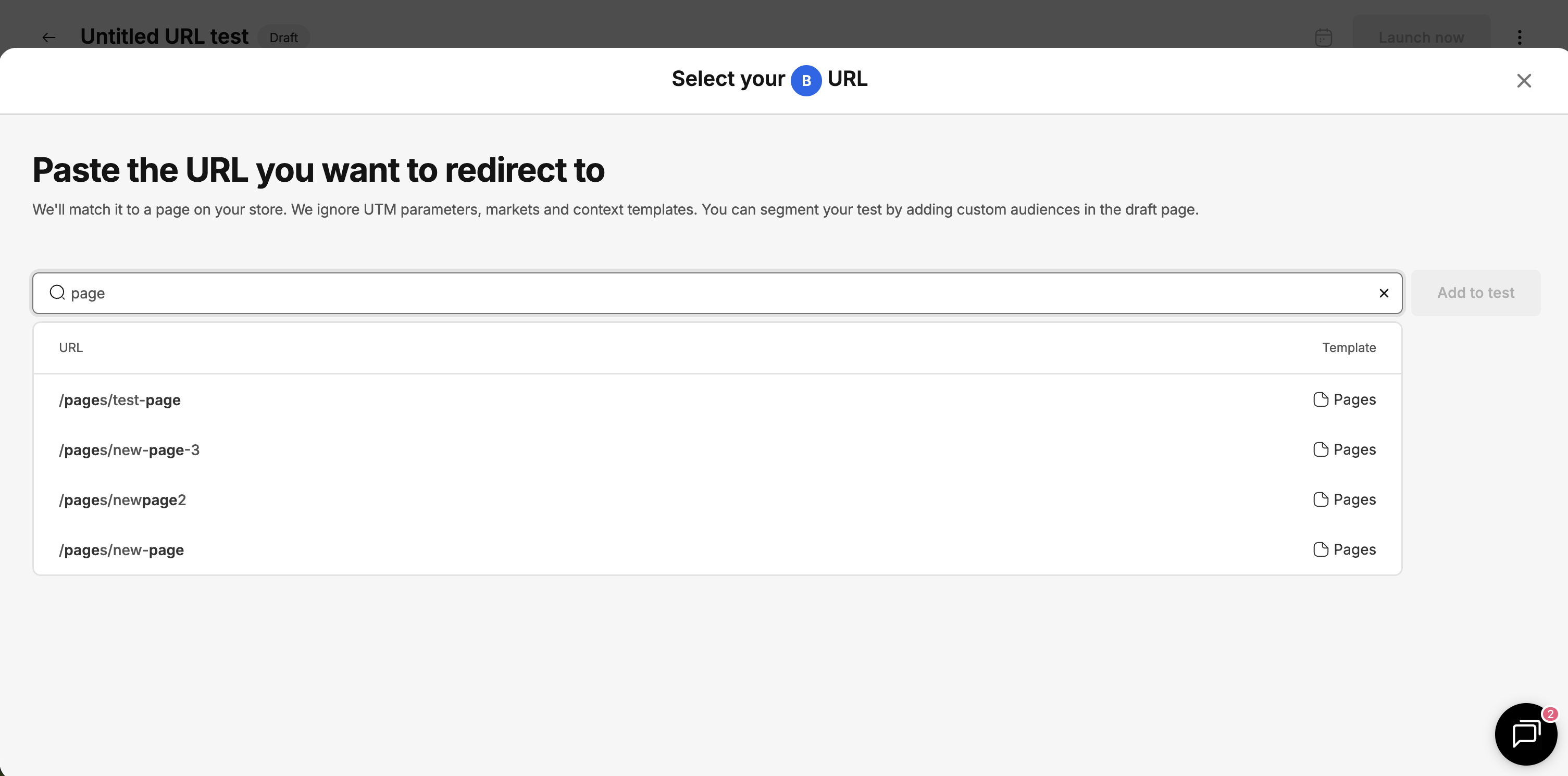
### Choose your variant page (B)
Next, use the same search or paste bar to find the page you want to redirect visitors to. This is your **B (Variant)** — the alternative page you're testing against the original.
{% endstep %}
{% step %}
### Configure your test settings
Set the following options before launching:
**Traffic allocation**
Choose what percentage of visitors see each version. Shoplift defaults to a 50/50 split, which is recommended for most tests. An even split reaches statistical significance fastest and gives you the clearest results.
**Goal**
Select the primary metric Shoplift uses to determine a winner. **Revenue per visitor (RPV)** is recommended for most tests because it captures both conversion rate and average order value in a single metric. Other options include conversion rate and add-to-cart rate.
**Hypothesis**
Write a short statement explaining what you expect to happen and why. A strong hypothesis follows this framework:
> **If** \[specific change you're making], **then** \[expected outcome], **because** \[reason you believe this].
For example: "If we add customer reviews above the fold on product pages, then RPV will increase, because social proof reduces purchase hesitation and builds trust."
A clear hypothesis helps you interpret results later. Even if your test doesn't win, a good hypothesis tells you *what you learned*.
**Device targeting**
Choose which devices your test runs on: **All devices** (recommended for most tests), **Mobile only**, or **Desktop only**. Use device targeting when your change only applies to one device type — for example, a mobile-specific sticky add-to-cart button.
**Visitor targeting**
Narrow your test to specific visitor segments:
* **All visitors**: recommended for most tests
* **New visitors only**: useful for testing first-impression elements like homepage layout
* **Returning visitors only**: useful for testing loyalty-focused features or repeat-purchase flows
{% hint style="info" %}
Visitor targeting is available on Advanced plans and above.
{% endhint %}
**Audience targeting**
For even more precise targeting, set rules based on:
* **UTM parameters**: target visitors from specific campaigns or traffic sources (for example, only test your homepage layout for visitors arriving from your Instagram ads)
* **Geographic location**: target visitors from specific countries or regions
* **Custom rules**: combine multiple conditions to target exactly the audience you want
{% hint style="info" %}
Audience targeting is available on Advanced plans and above.
{% endhint %}
{% endstep %}
{% endstepper %}
### Tips for a successful URL redirect test
* **Make sure the variant page is published and accessible.** If the variant page returns a 404, visitors in the test will see an error page. Always verify the URL works in your browser before launching.
* **Don't change either page mid-test.** Changing the content of your original or variant page while the test is running can skew your results. If you need to make changes, pause the test first.