> For the complete documentation index, see [llms.txt](https://docs.shoplift.ai/llms.txt). Markdown versions of documentation pages are available by appending `.md` to page URLs; this page is available as [Markdown](https://docs.shoplift.ai/test/template-testing/create-a-template-test.md).
# Create a Template Test
A template test lets you compare two versions of a Shopify theme template to see which one drives more revenue. Test your homepage layout, product page design, collection page structure, or any other template in your theme.
### Set up your template test
{% stepper %}
{% step %}
### Create a new test
Open Shoplift and click **Create a test** in the top-right corner.
{% endstep %}
{% step %}
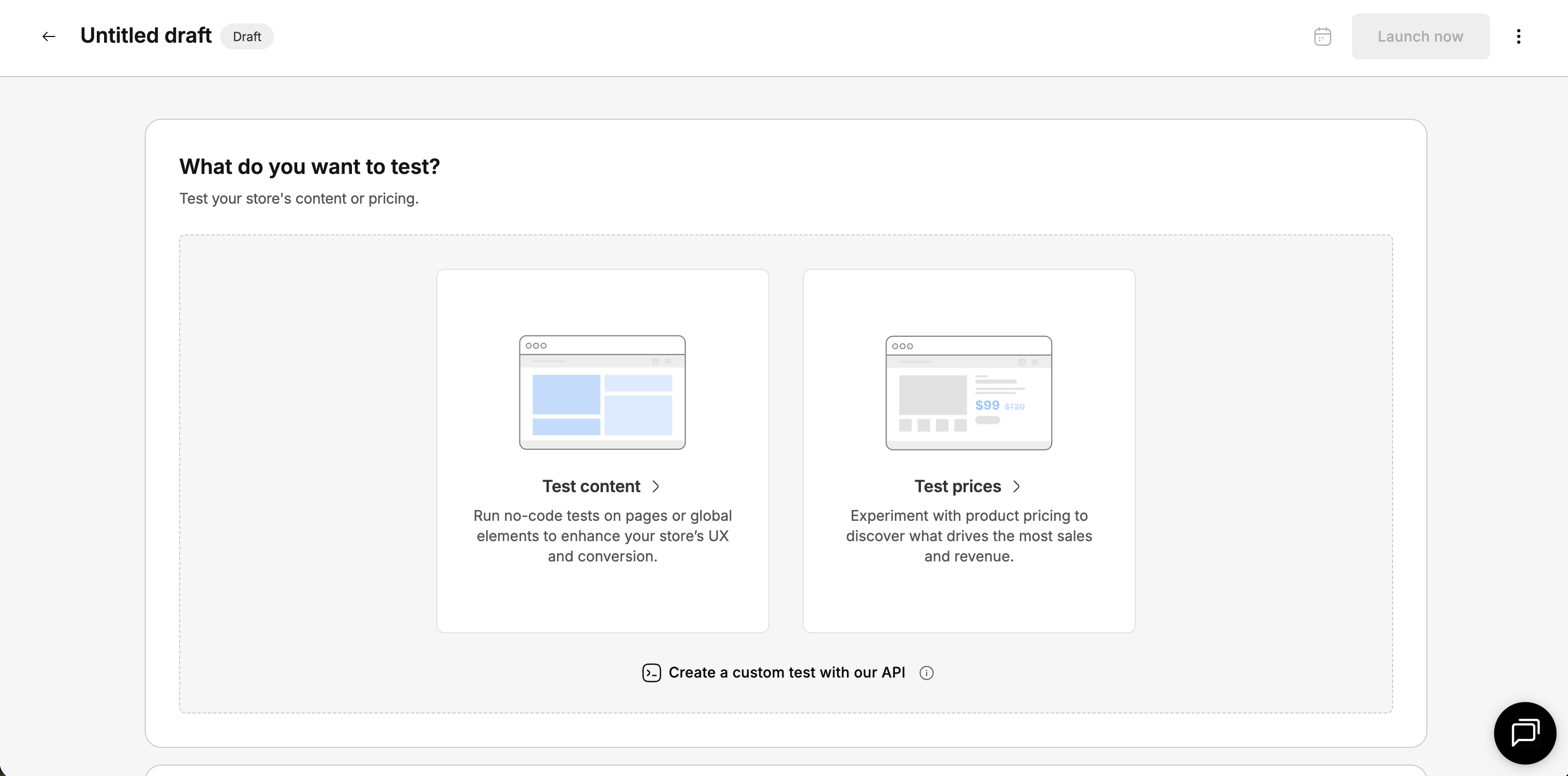
### Select your test type
Choose **Test content.**
Then select **Test a template**.
{% endstep %}
{% step %}
### Choose your original template
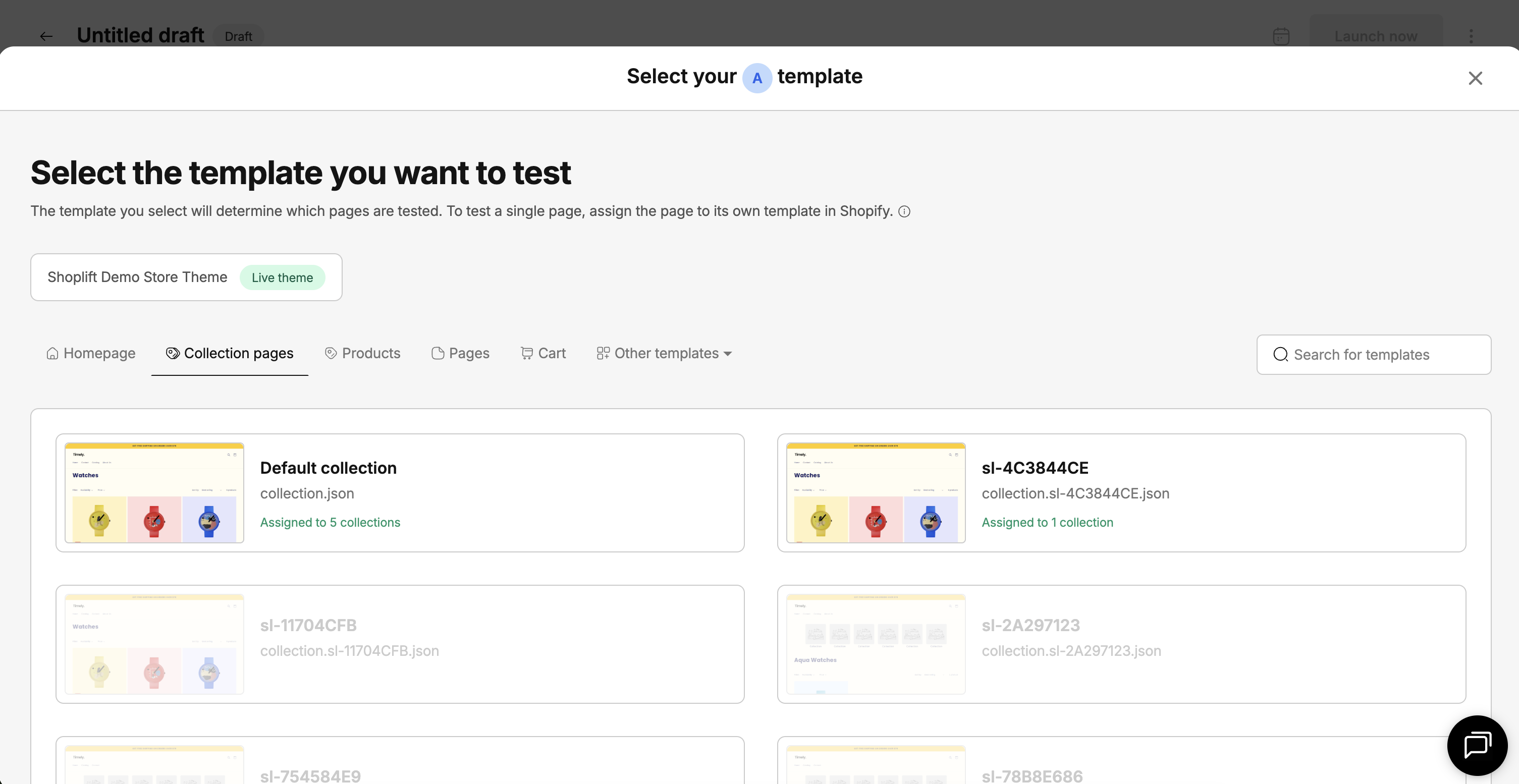
The template drawer opens, showing all the templates in your live theme — organized by page type (homepage, collections, products, and more).
Select the template you want to improve. This becomes your **A (Original)** — the version your visitors currently see.
The drawer shows how many pages are assigned to your selected template. Your test runs on all of these pages. For example, if your "Default product" template is assigned to 50 products, the test runs across all 50 product pages.
{% hint style="info" %}
Templates that aren't assigned to any pages can't be selected as your original, because they aren't live on your store. To change which template a page uses, go to the product, collection, or page editor in Shopify and update the template assignment there.
{% endhint %}
{% endstep %}
{% step %}
### Create your variant
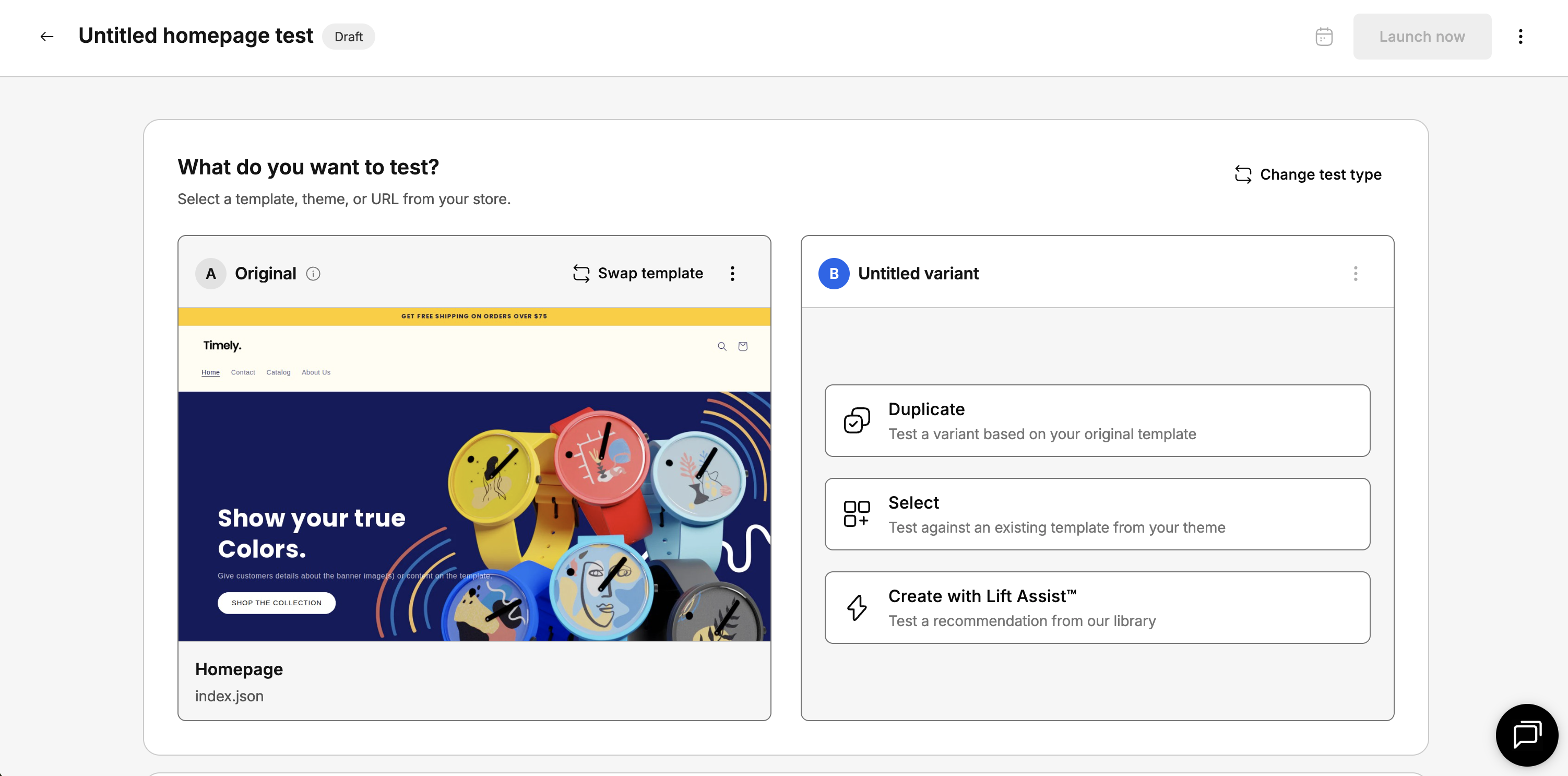
Now choose how to create your **B (Variant)** — the version you'll test against your original. You have three options:
**Duplicate your original**
Creates a pixel-perfect copy of your A template. This is the most common choice — start from an exact copy and make targeted changes in the Theme Editor. Best when you want to test specific, controlled changes (like reordering sections or swapping a hero image).
**Select an existing template**
Pick a different template that already exists in your theme to test against your original. This works well if you've already built an alternative layout you want to validate. You can select templates that aren't currently assigned to any pages — this is a great way to test a new design before assigning it to live pages.
**Create with Lift Assist™**
Browse Shoplift's library of recommended tests, featuring pre-built theme sections that are matched to your theme's style. Choose a test idea, customize it to your liking, and launch. Lift Assist™ takes the guesswork out of what to test next.
{% hint style="info" %}
Lift Assist™ is available on Advanced plans and above.
{% endhint %}
{% endstep %}
{% step %}
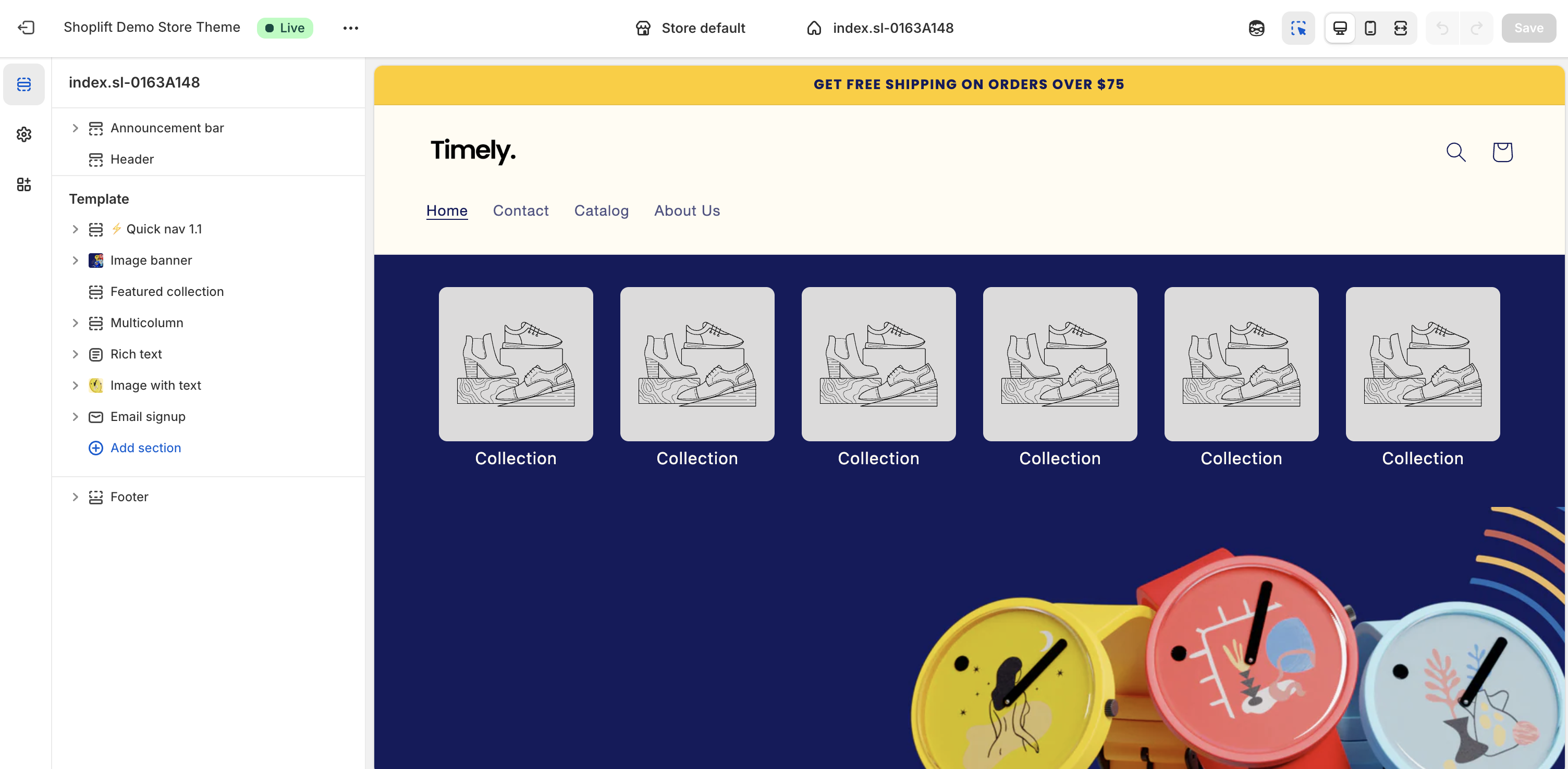
### Edit your variant in the Theme Editor
After creating your variant, click **Edit in Theme Editor** to open Shopify's Theme Editor. Make whatever changes you want to test — add sections, reorder content, update images, change copy, adjust styling.
{% hint style="warning" %}
Only edit the variant template. Changes to your original template will affect what all visitors currently see on your live store.
{% endhint %}
When you're done editing, save your changes in the Theme Editor and return to Shoplift.
{% endstep %}
{% step %}
### Configure your test settings
Set the following options before launching:
**Traffic allocation**
Choose what percentage of visitors see each version. Shoplift defaults to a 50/50 split, which is recommended for most tests. An even split reaches statistical significance fastest and gives you the clearest results.
**Goal**
Select the primary metric Shoplift uses to determine a winner. **Revenue per visitor (RPV)** is recommended for most tests because it captures both conversion rate and average order value in a single metric. Other options include conversion rate and add-to-cart rate.
**Hypothesis**
Write a short statement explaining what you expect to happen and why. A strong hypothesis follows this framework:
> **If** \[specific change you're making], **then** \[expected outcome], **because** \[reason you believe this].
For example: "If we add customer reviews above the fold on product pages, then RPV will increase, because social proof reduces purchase hesitation and builds trust."
A clear hypothesis helps you interpret results later. Even if your test doesn't win, a good hypothesis tells you *what you learned*.
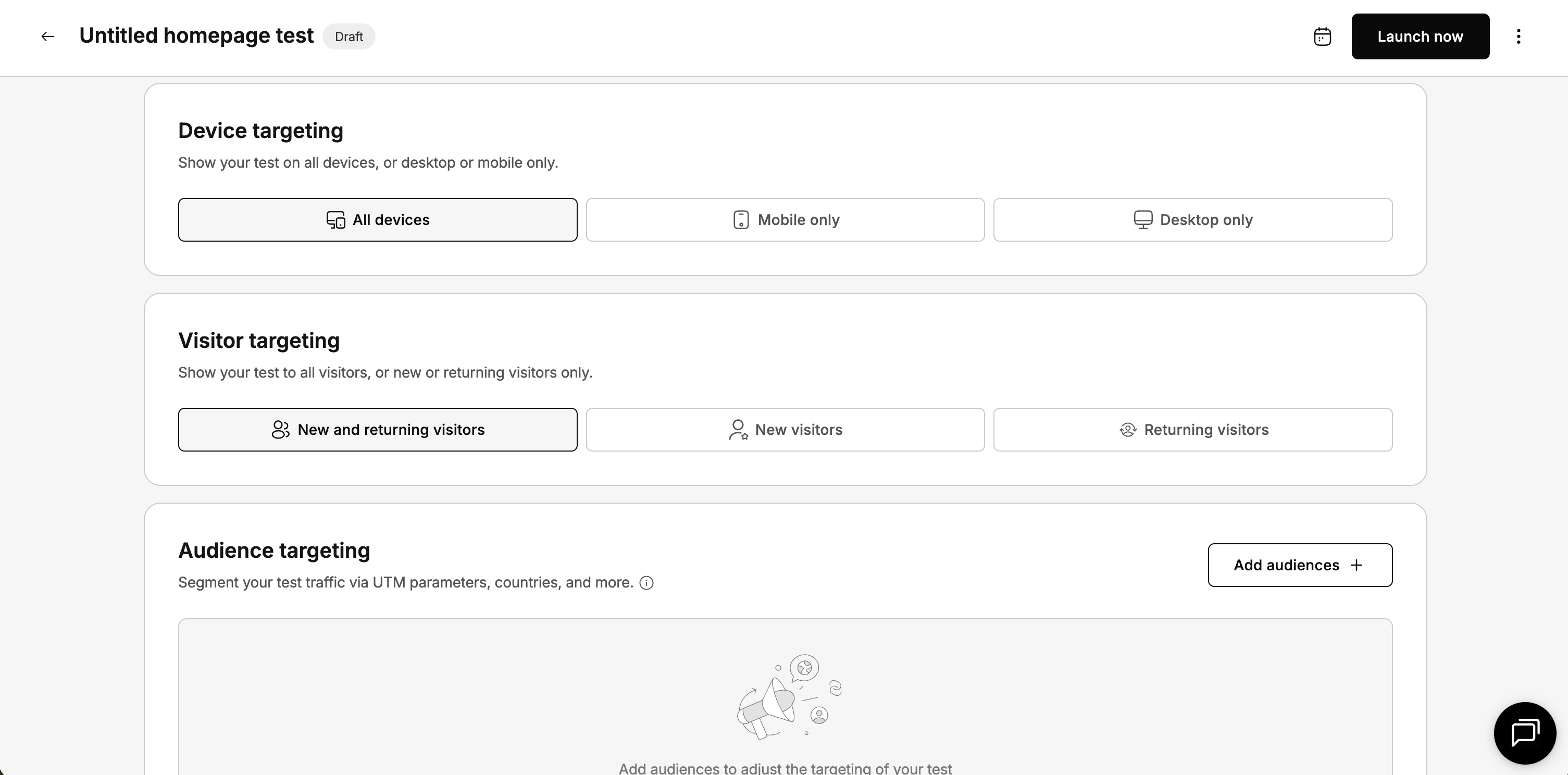
**Device targeting**
Choose which devices your test runs on: **All devices** (recommended for most tests), **Mobile only**, or **Desktop only**. Use device targeting when your change only applies to one device type — for example, a mobile-specific sticky add-to-cart button.
**Visitor targeting**
Narrow your test to specific visitor segments:
* **All visitors**: recommended for most tests
* **New visitors only**: useful for testing first-impression elements like homepage layout
* **Returning visitors only**: useful for testing loyalty-focused features or repeat-purchase flows
{% hint style="info" %}
Visitor targeting is available on Advanced plans and above.
{% endhint %}
**Audience targeting**
For even more precise targeting, set rules based on:
* **UTM parameters**: target visitors from specific campaigns or traffic sources (for example, only test your homepage layout for visitors arriving from your Instagram ads)
* **Geographic location**: target visitors from specific countries or regions
* **Custom rules**: combine multiple conditions to target exactly the audience you want
{% hint style="info" %}
Audience targeting is available on Advanced plans and above.
{% endhint %}
{% endstep %}
{% endstepper %}