Choose the Right Test Type
Shoplift offers five test types, each built for a different kind of change on your store.
Test types
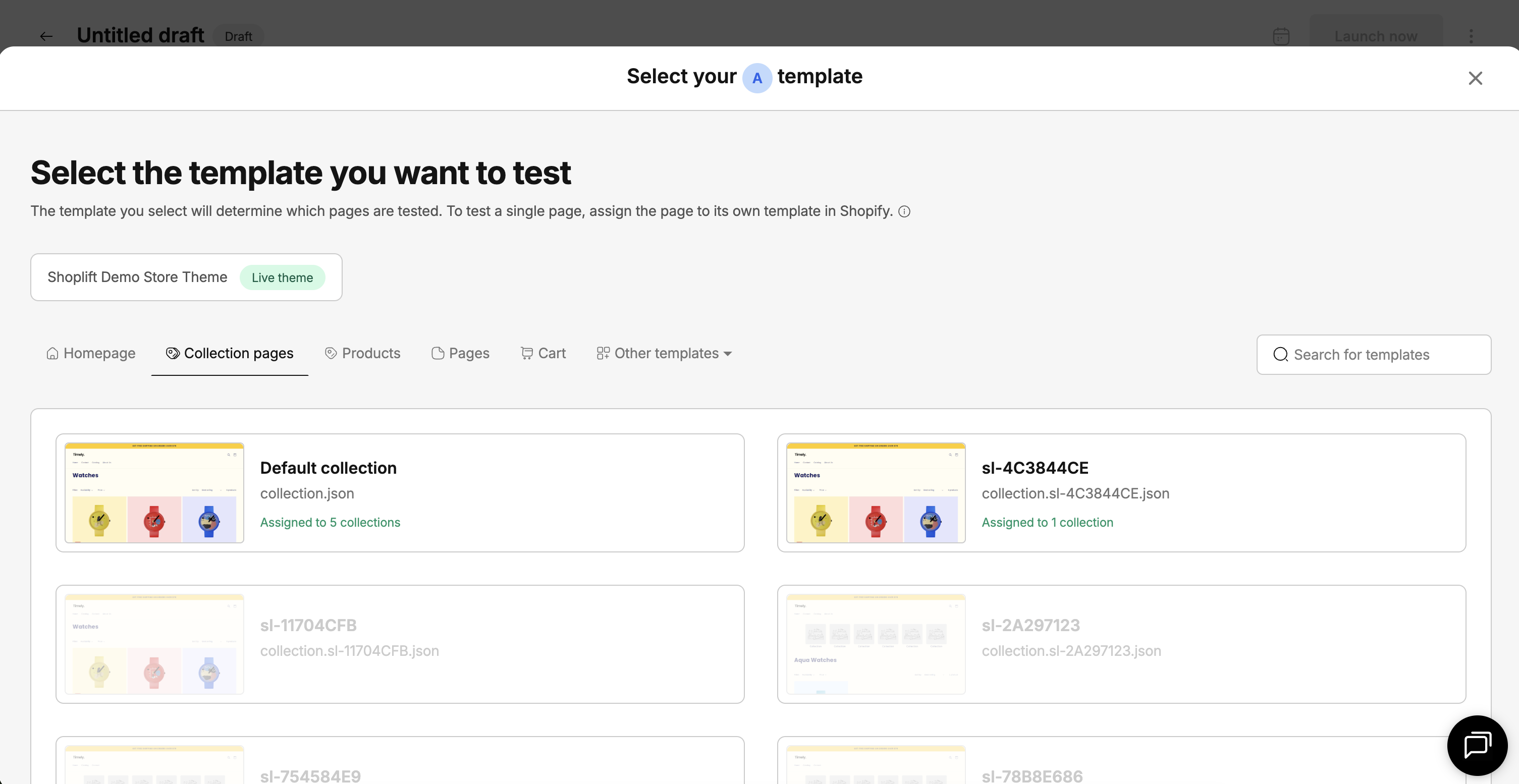
Template test
Test Shopify theme templates
Testing changes to specific pages or groups of pages. Testing your homepage, collection pages, and product pages
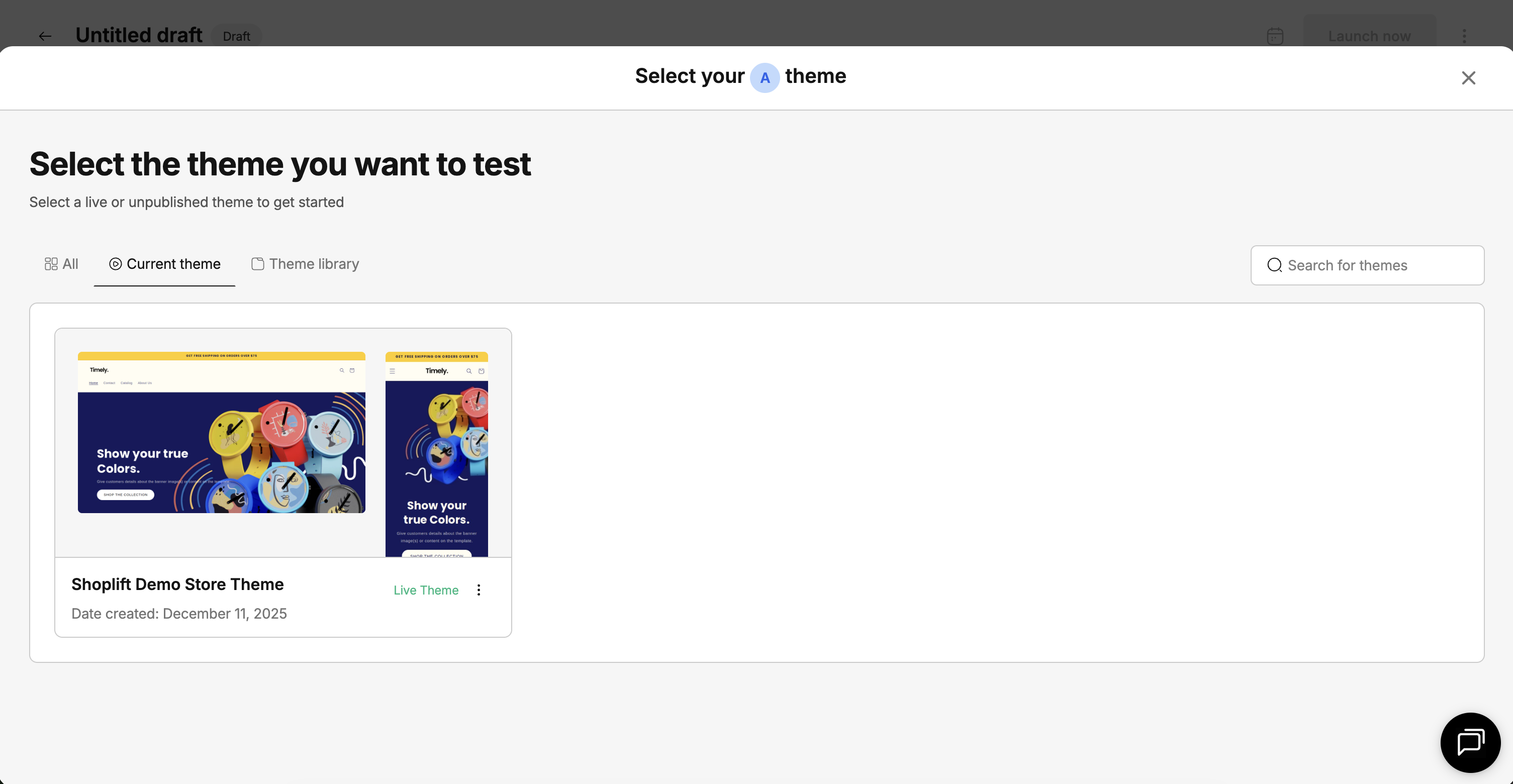
Theme test
Test Shopify themes
Testing changes to global elements. Testing your navigation menus, cart experience, or other site-wide functionality
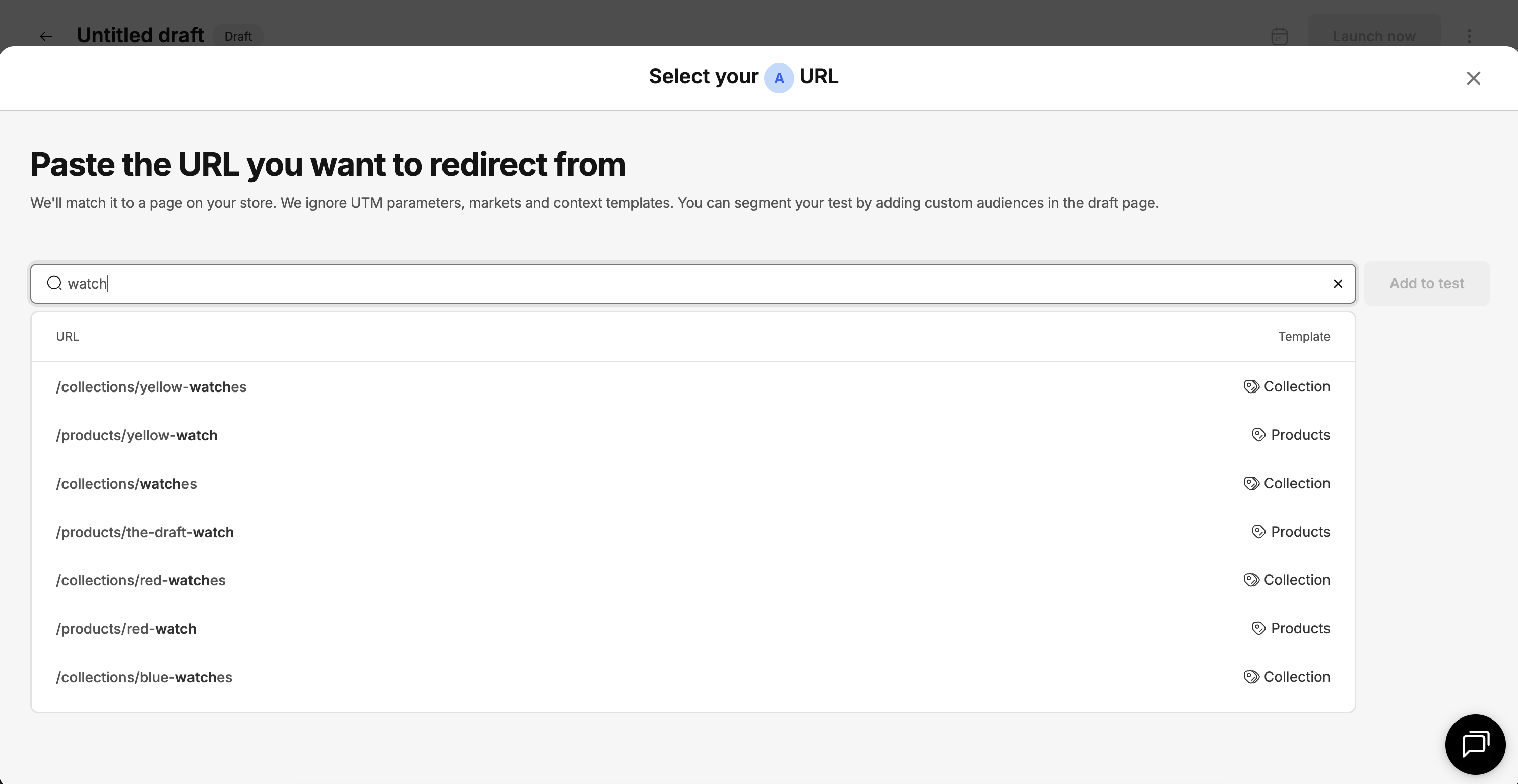
URL redirect test
Test Shopify pages
Testing two pages against each other, like landing pages against other pages
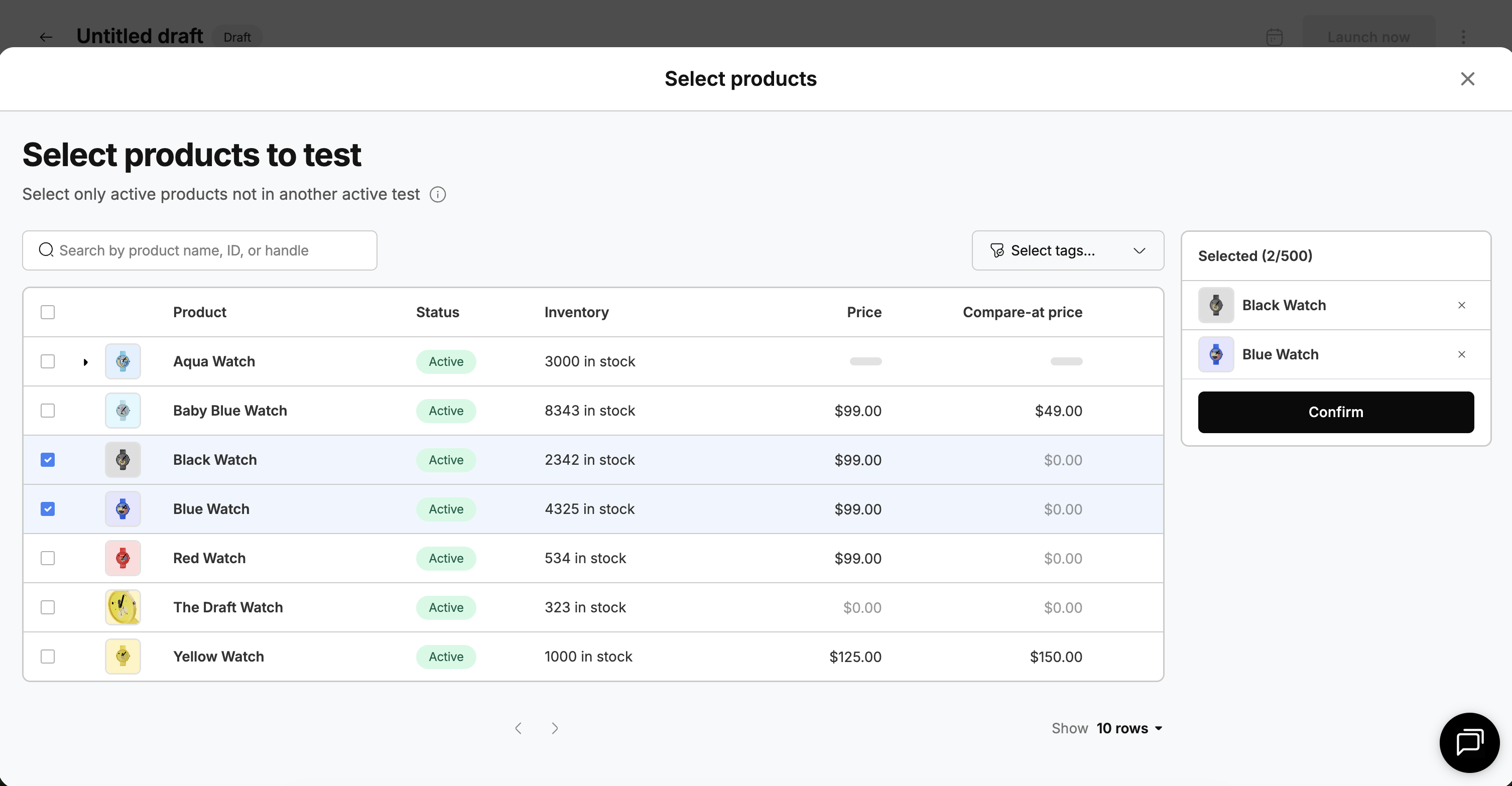
Price test
Test product prices
Testing your product prices, including price and compare-at price
JavaScript API test
Test with custom code
Testing anything you can imagine, using Shoplift as the experimentation engine to allocate traffic between experiences and measure results
Details on each type
Template test
A template test changes the layout of a specific page type. You edit the variant template in Shopify's Theme Editor (no code required), and Shoplift shows the variant to whatever percentage of your visitors you specified in the test who are on those pages. The rest of your store stays untouched.

Best for: product page layouts, collection page designs, homepage sections, or any change scoped to a single page type.
Example: You want to test whether moving customer reviews above the fold on your product page increases conversions. Create a template test, rearrange the sections in the Theme Editor, and launch.
Things to know:
Template tests target the collections, products, and pages that are assigned to them in Shopify. This means you can target a single product, a group of products, or all products by changing which products are assigned to your templates before the test. For a detailed guide on how to do this, see Guide: Testing Individual Pages
You can test certain templates against other templates. For a detailed guide on how to do this, see Guide: Testing Different Template Types
Multiple template tests can run at the same time, as long as they target different page types.
Template tests don't affect your header, footer, or navigation. Those are global elements and require a theme test.
Theme test
A theme test compares your entire live theme against a modified copy. Visitors in the variant group see a completely different theme, so every page, section, and setting can differ. This makes theme tests the right choice for large-scale, store-wide changes.

Best for: full store redesigns, testing a new theme, changing the navigation or header, switching from a page cart to a drawer cart, updating global colors or fonts, or testing a Theme App Embed.
Example: You're considering switching from Dawn to a premium theme. Duplicate your live theme, apply the new theme's changes, and run a theme test to compare performance before committing.
Price test
A price test measures how pricing affects conversions and revenue per visitor. Shoplift updates the price visitors see on product pages, collection pages, and in the cart, and ensures the correct price carries through to checkout.

Best for: testing higher or lower price points, experimenting with compare-at (strikethrough) pricing, or measuring whether a price change improves overall revenue.
Example: You want to know if lowering a product from $49.99 to $39.99 drives enough extra orders to offset the lower price. Set up a price test and let the data decide.
Things to know:
Price tests are store-wide: the test price appears everywhere the product shows up on your store.
You can show different prices to different customer segments by running multiple price tests and leveraging Audience targeting.
Payment installment messaging (Shop Pay, Afterpay, Klarna) is automatically recalculated to match the test price.
Visitors can only participate in one price test at a time, but you can run multiple price test simultaneously if you have enough traffic.
Price testing has legal and ethical considerations depending on your region. Make sure you understand the regulations that apply to your market before running price tests.
URL redirect test
A URL redirect test sends visitors from one URL to a completely different page. Instead of modifying a page in place, you're comparing two entirely separate pages.

Best for: comparing different landing pages for the same campaign, testing whether visitors convert better on a custom page vs. a standard collection page, or A/B testing pages built with different page builders.
Example: You're running a Facebook ad campaign and want to test whether a curated landing page (/pages/summer-sale) outperforms your standard collection page (/collections/summer). Set up a URL redirect test pointing traffic from the collection to the landing page.
Things to know:
The destination page must already exist in Shopify. Shoplift handles the redirect, not the page creation.
Make sure the variant URL doesn't match the entry URL pattern, or visitors will get stuck in a redirect loop. For example, if the entry is
/collections/*, the variant should be a/pages/URL, not another collection URL.Multiple URL redirect tests on different pages can run at the same time.
JavaScript API test
A JavaScript API test uses custom JavaScript (written by your developers) in your theme code to test changes that other test types can't. There are two sub-types:
Automatic API test: runs automatically on every page load. Good for site-wide changes like adding a notification bar or modifying a global UI element.
Manual API test: runs only when a developer triggers it via Shoplift's JavaScript API. Good for custom trigger logic or complex entry conditions (for example, firing a test only after a visitor scrolls 50% down the page).
Best for: custom behavior changes, third-party integration experiments, or scenarios where no other test type fits.
Example: You want to test whether adding a sticky add-to-cart bar on mobile increases conversions. A developer writes a short script that adds the bar, and you run it as an automatic API test.
JavaScript API tests require coding knowledge. If you're not comfortable with JavaScript, template tests and theme tests can handle most changes through the Shopify Theme Editor with no code required.
Decision table
Quick Shortcut
If the change only affects one type of page (like product pages), it's probably a template test.
If the change shows up on every page (like the header or footer), it's a theme test.
Some changes blur the line. For example, changing a button color on your product page could be a template test (if you're editing the template's sections) or a theme test (if the color is controlled by a global theme setting). Check where the setting lives in Shopify's Theme Editor to decide.
Homepage layout, sections, or content
Homepage template
Template test
Collection page layout, sections, or content
Collection template
Template test
Product page layout, sections, or content
Product template
Template test
A specific page (About, Contact, landing page) layout, sections, or content
Page template
Template test
Blog or article layout, sections, or content
Blog/article template
Template test
Navigation, header, or announcement bar
Theme layout (global)
Theme test
Footer layout or content
Theme layout (global)
Theme test
Global colors, fonts, or spacing
Theme settings (global)
Theme test
Cart type (page cart vs. drawer cart)
Theme settings (global)
Theme test
Product pricing or compare-at prices
Displayed prices
Price test
An entirely different landing page or URL
Different page/URL
URL redirect test
Custom behavior and content via JavaScript
Custom code in your theme
JavaScript API test
Last updated
Was this helpful?